Creating and modifying relationships
Written By Tess Hoogeboom
Last updated 4 months ago
In TriFact365, you can create and edit relations.
Create a new relation
If TriFact365 cannot find a contact, the supplier or customer field will be outlined in red. By clicking the pencil icon, you can create a new relation yourself.

Edit a relation
Need to update a relation’s information? You can easily do this in TriFact365. Click the pencil icon next to the relation. Add or edit the information, and then click Save. These changes will be applied immediately in the accounting software.

Automatic suggestion for creating a new relation
Note
Make sure this is actually a new relation. You can verify this by searching for the name of the suggested contact in the Supplier/Customer field.
If a supplier or customer is not known in your administration, TriFact365 can automatically suggest creating this new relation in your administration. You will then see the following message:
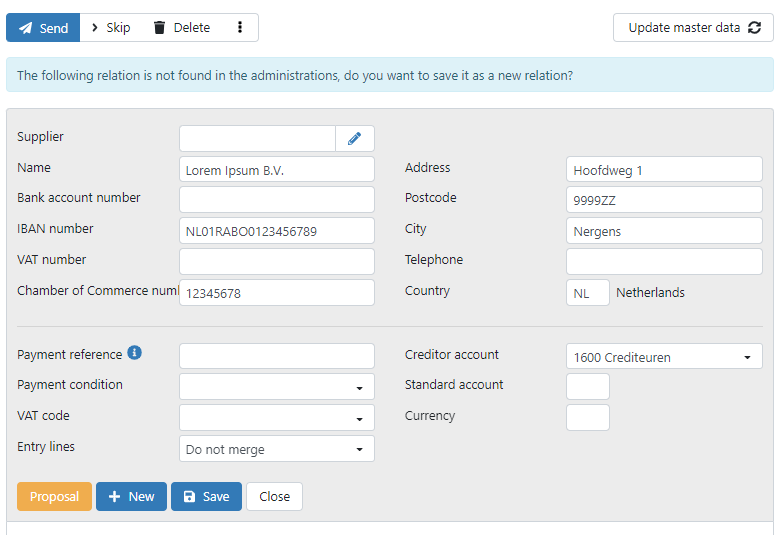
When you click Save, the relation and its associated master data are saved in TriFact365 and in the linked accounting software.
Why doesn’t TriFact365 automatically create the relation?
This is to prevent duplicate relations from being created automatically in your accounting system.
For example, this may happen if an existing relation has been entered under a slightly different name in your administration. In that case, you can decide for yourself whether the relation is truly new and should be created.
How can my relations be best recognized?
Make sure as much master data as possible is entered for a relation (supplier/customer).
e.g., (Company) Name, address, bank account, Chamber of Commerce, VAT, and IBAN numbers.
Regularly check whether the master data is still up to date.
The information on the document and in the master data must match.
Avoid duplicate contacts.
Has TriFact365 suggested a new relation? First check whether it already exists.
Was this helpful?
Still need help? Ask the team