(Un)blocking invoices for payment (Exact Online)
How blocking and unblocking for payment works in Exact Online when you use Post before approval.
Written By Tess Hoogeboom
Last updated 8 days ago
Do you use Post before approval? Then TriFact365 posts the entries in Exact Online, but blocked for payment. After approval, TriFact365 unblocks the entries.
Make sure there are no documents with the status Approve before you turn on Post before approval. Otherwise, these documents are not sent to your accounting package.
Settings
Select Post before approval for the company.
Click Save.
Click
•••→ Edit next to the company.Open the Entry settings tab.
Select the Payment condition for 'Post before approval'. In Exact Online, this must be a payment condition with the payment method Cash.
Click Save.
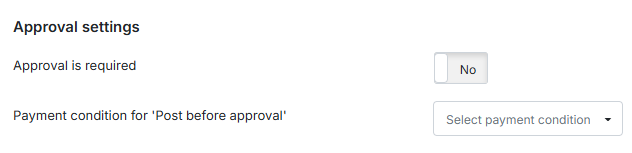
TriFact365 now posts the documents with this payment condition. After a document has been approved in TriFact365, TriFact365 changes the payment condition back to the payment condition of the entry.
Creating a payment condition in Exact Online
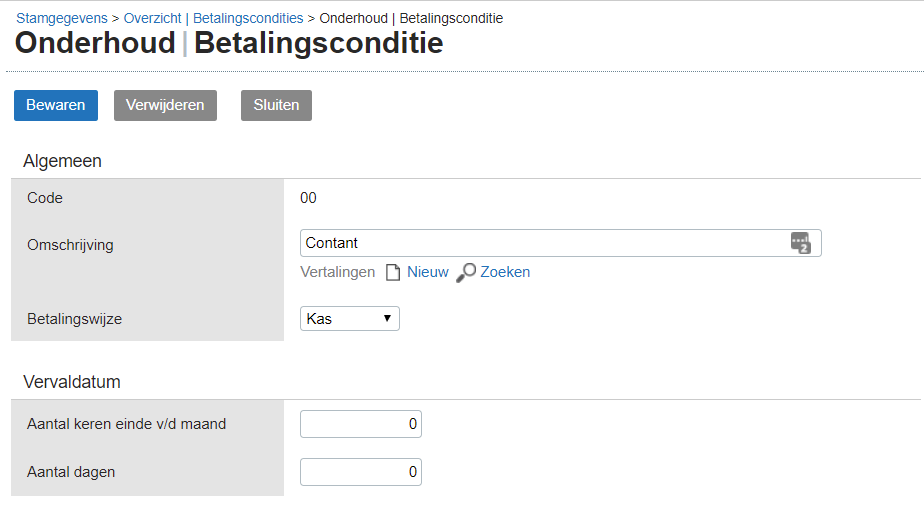
Exact Online has a default payment condition with the payment method Cash. Is it missing, or do you want to create your own?
In Exact Online, go to Master Data → Accounts → Payment Terms.
Click New.
Set Payment method to Cash and Days to 0.
Enter a recognisable Description.
Never change the payment condition in Exact Online while Post before approval is on; TriFact365 does this automatically after approval. Also do not process the entry in Exact Online until approval is complete, otherwise TriFact365 can no longer change the payment condition.
Related articles
Was this helpful?
Still need help? Ask the team