Create and set up authorisation schemes
How to create an authorisation scheme, set up the workflow and choose which companies it applies to.
Written By Tess Hoogeboom
Last updated 8 days ago
With an authorisation scheme, you decide who authorises a document as soon as it arrives in TriFact365, before it is checked. You set up a workflow with one or more stages and choose which companies the scheme applies to.
Make sure the users have been assigned the Authorisation right.
Make sure the users have been assigned to the relevant companies.
Create the scheme
Go to Settings (cogwheel) → Authorisation schemes and click New.
Give the authorisation scheme a recognisable description.
Set up the workflow
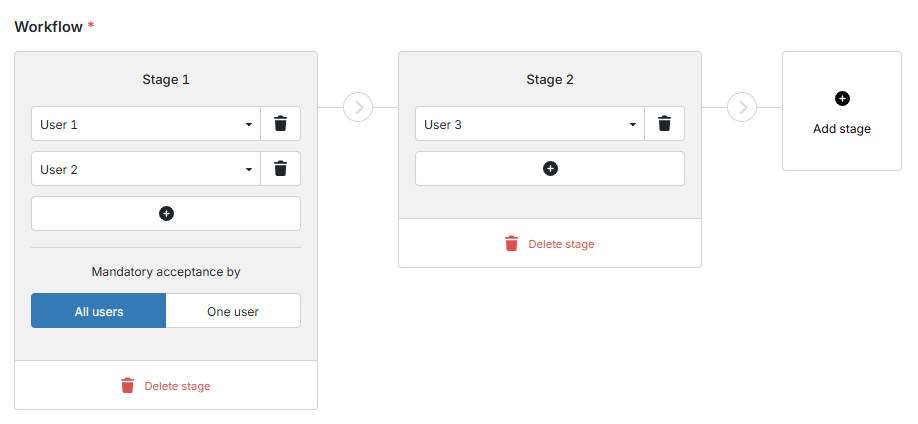
Next, you set up the workflow. It consists of one or more stages, each with one or more users who authorise the documents. A document first goes through stage 1. Once that stage is complete, the document moves on to stage 2, and so on. A workflow can contain up to 5 stages.
Click the button with the plus sign. Stage 1 becomes available.
Select a user in stage 1 under Select a user.
If needed, add another user with the plus button. A stage can contain up to 10 users.
If you add more than one user to a stage, the Mandatory acceptance by setting becomes available:
All users: all users in this stage must accept the document.
One user: one of the users in this stage must accept the document.
Click Add stage to add a new stage.
Click Delete stage to remove a stage from the workflow.
Set up companies
Finally, choose which companies the authorisation scheme applies to. A company can be linked to only one authorisation scheme.
Is a company not listed under Available companies? Then it is already linked to another authorisation scheme.
Good to know
Once you have created an authorisation scheme, you can see which companies use authorisation under Settings (cogwheel) → Companies, in the Authorisation column.
How to authorise documents in the portal and the mobile app:
How to set up email reminders for documents awaiting authorisation:
Frequently asked questions
There is a lock icon next to Authorisation schemes under Settings (cogwheel). What should I do?
There is a lock icon next to Authorisation schemes under Settings (cogwheel). What should I do?
Authorisation is not available with a Standard subscription. To use it, upgrade to a Plus subscription. Please contact our support team.
What is the difference between Authorisation and Approval?
What is the difference between Authorisation and Approval?
Authorisation takes place before the document is checked. Authorisers accept or reject the document as soon as it enters the TriFact365 workflow.
Approval takes place after the document has been checked. Approvers accept or reject the entry proposal. After approval, the entry is sent to your accounting package.
How do I authorise a document?
How do I authorise a document?
You can authorise documents in both the portal and the mobile app. See: Authorisation of documents
Can I receive a notification when documents are ready for me to authorise?
Can I receive a notification when documents are ready for me to authorise?
Yes. Set up Email reminders in the portal to receive an email when documents are waiting for you. In the mobile app, you can turn on push notifications in the settings.
Was this helpful?
Still need help? Ask the team