Confirmation of documents
Documents can be confirmed through the portal and the mobile app.
Written By Tess Hoogeboom
Last updated 4 months ago
Via the portal
There are several ways to access documents that need to be confirmed:
Click the Confirm tile on the Home screen (if you have one administration in TriFact365).
On the Home screen, click the Confirm column in the Backlog per administration table (if you have multiple administrations).
Go to Backlog. Then click the Confirm status next to the document.
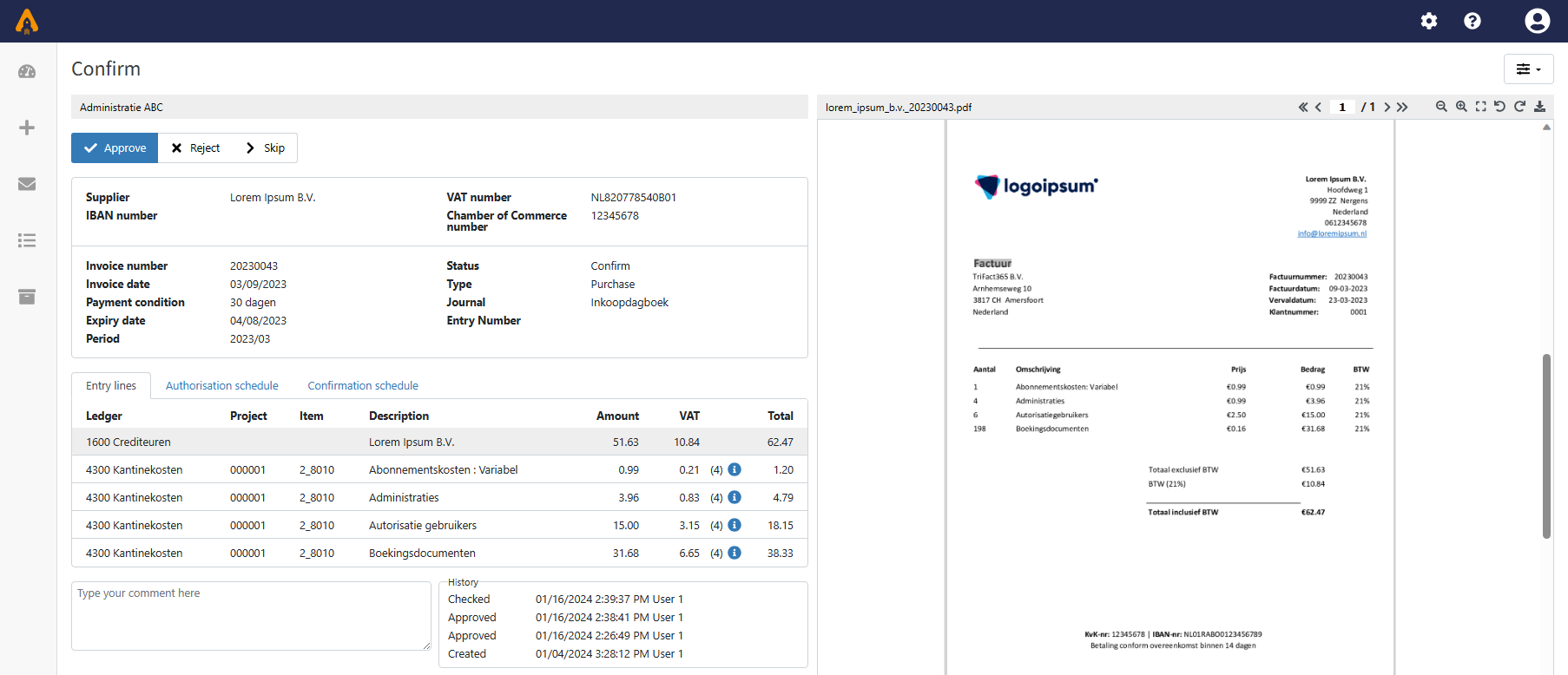
On the right, you’ll see the relevant document. On the left, you’ll see the associated posting details. You can perform the following actions:
Approve: This approves the document and the associated entry, and moves it to the next phase.
Reject: This rejects the document and the associated entry, setting its status to Rejected.
Skip: The document remains in the Confirmation stage. You can review it again at a later time.
Add Comment and History
You can add a comment in the white field below the confirmation schedule. After approving, rejecting, or skipping the document, the comment will be added to the History on the right-hand side.
Display Options
Using the Display Options, you can change the screen layout. This allows you to move the document to the left and resize it to fit.
User Rights: Upload + Confirmation
Do you have the Upload and Confirmation rights as a user? If so, you’ll see all invoices awaiting approval in the Backlog, not just your own.
Via the mobile app
Select the administration you want to Confirm documents for. You will then see the first document that can be approved.
You can take the following actions:
Reject: Click the red button or swipe left
Approve: Click the green button or swipe right
Add a comment: Click on History, add a comment, and click on the Paper Airplane
Skip: Click the three dots and then click Skip
Tip
Would you like to receive notifications on your phone when documents are ready for you? You can turn these on in the app. In the app, go to Settings → Push Notifications.
Email Reminders
You can also receive email reminders. You’ll get an email when documents are ready for you to sign.
Frequently Asked Questions
What happens to rejected documents?
What happens to rejected documents?
When a document is rejected, it is given the status Rejected. You can then restore it and adjust the journal entry proposal.
What is the difference between Authorisation and Confirmation?
What is the difference between Authorisation and Confirmation?
Authorisation takes place before the invoice is checked. During authorisation, you approve or reject the invoice after it enters the TriFact365 workflow.
Confirmation occurs after the invoice has been checked. When confirming, you approve or reject the final journal entry proposal for this invoice. After approval, the entry is send to the accounting software.
Was this helpful?
Still need help? Ask the team