Tips for setting up a confirmation schedule
Several options are available when setting up a confirmation schedule. This depends on the route a document needs to take and can differ within each organisation.
Written By Tess Hoogeboom
Last updated 4 months ago
Stage
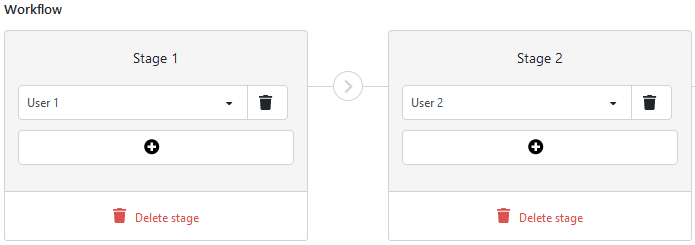
Via the stages in the workflow, you determine the order in which documents must be confirmed. The document to be confirmed passes stage 1 first. When this is completed, the document proceeds to stage 2, etc. A schedule can contain a maximum of 5 stages.
When the order is not relevant and approval may be done in parallel, you can place all Approvers in the same stages.
All users vs. One user
Does a stage contain more than one user? Then you can choose from two settings:
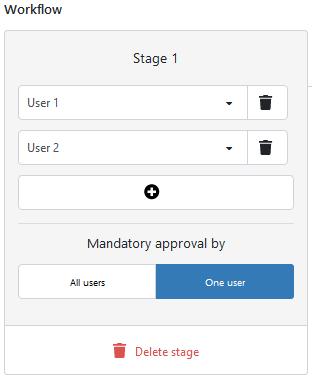
All users: All users in this phase must approve the document.
One user: One of the users in this phase must approve the document.
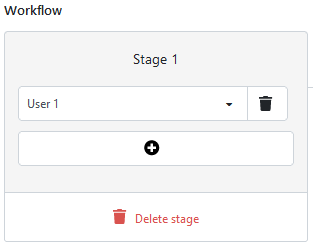
Situation 1 – One approver
One person must approve the document. The schedule should look as follows:
Situation 2 – Multiple approvers in succession
Approver A should approve the document first, after which Approver B should also approve the document. The schedule should look as follows:
Situation 3 – Multiple approvers in parallel
There are multiple approvers who may approve, but one agreement is sufficient.
The schedule should look as follows:
Questions?
Not quite sure how to set up the confirmation schedule? If so, please contact our support department. We will be happy to help you set it up.
Was this helpful?
Still need help? Ask the team