(Un)blocking invoices for payment (Twinfield)
How to post invoices to Twinfield as drafts, blocked for payment until approval in TriFact365 is completed.
Written By Tess Hoogeboom
Last updated 8 days ago
When you use Post before approval in TriFact365, entries are posted to Twinfield as drafts and are blocked for payment. They are finalised after approval.
Turning on Post before approval
Check that there are no invoices with the status Approve. If there are invoices with the status Approve when you turn on Post before approval, those invoices are not posted to the accounting package.
Select Post before approval for the company.
Click Save.
What happens in Twinfield
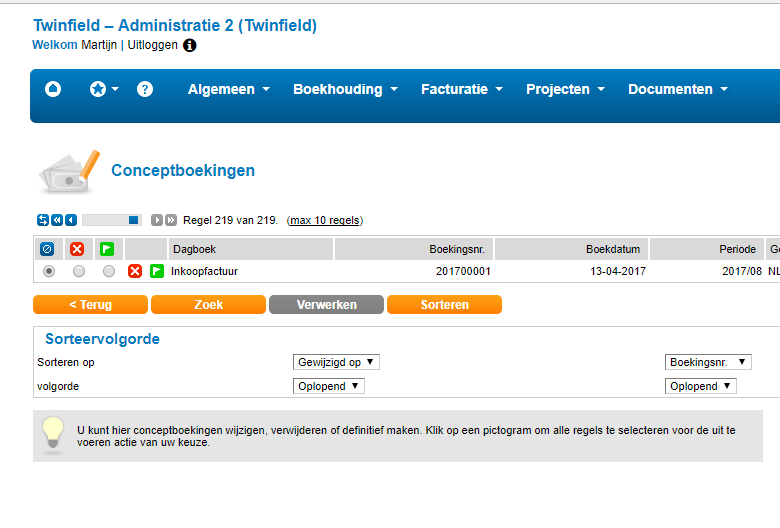
The entry appears as a draft in Twinfield and is therefore blocked for payment. As soon as approval in TriFact365 is completed, TriFact365 automatically finalises the entry in Twinfield. You can then include the entry in the payment batch in Twinfield.
Viewing draft entries in Twinfield
In Twinfield, go to Boekhouding → Boekhouden → Conceptboekingen.
Was this helpful?
Still need help? Ask the team