Link with AFAS
Written By Tess Hoogeboom
Last updated 27 days ago
Go in TriFact365 to Settings (Cogwheel) at the top right and click on Links and then click New.
Step 1
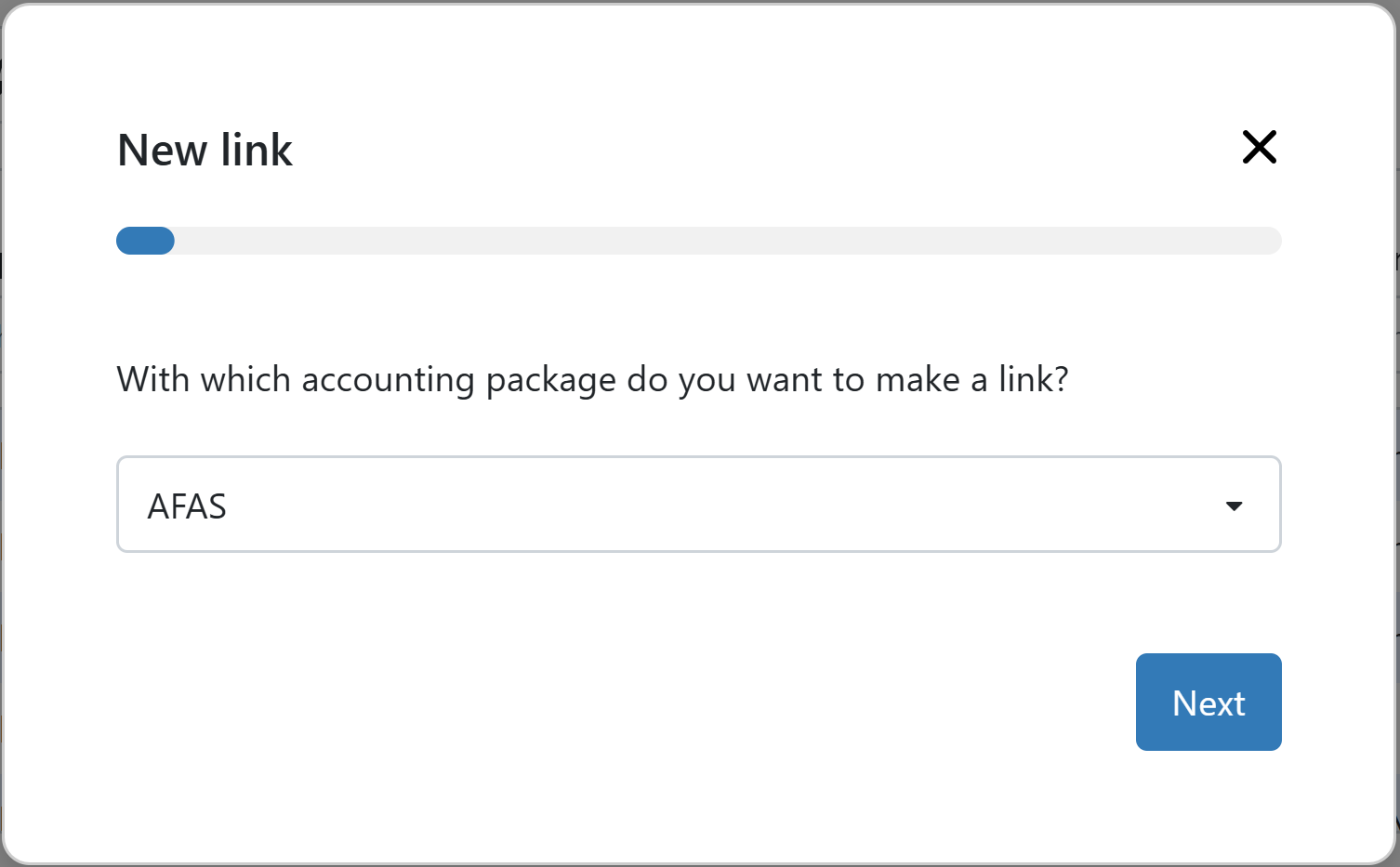
Select AFAS as the accounting package you want to connect with.
Step 2
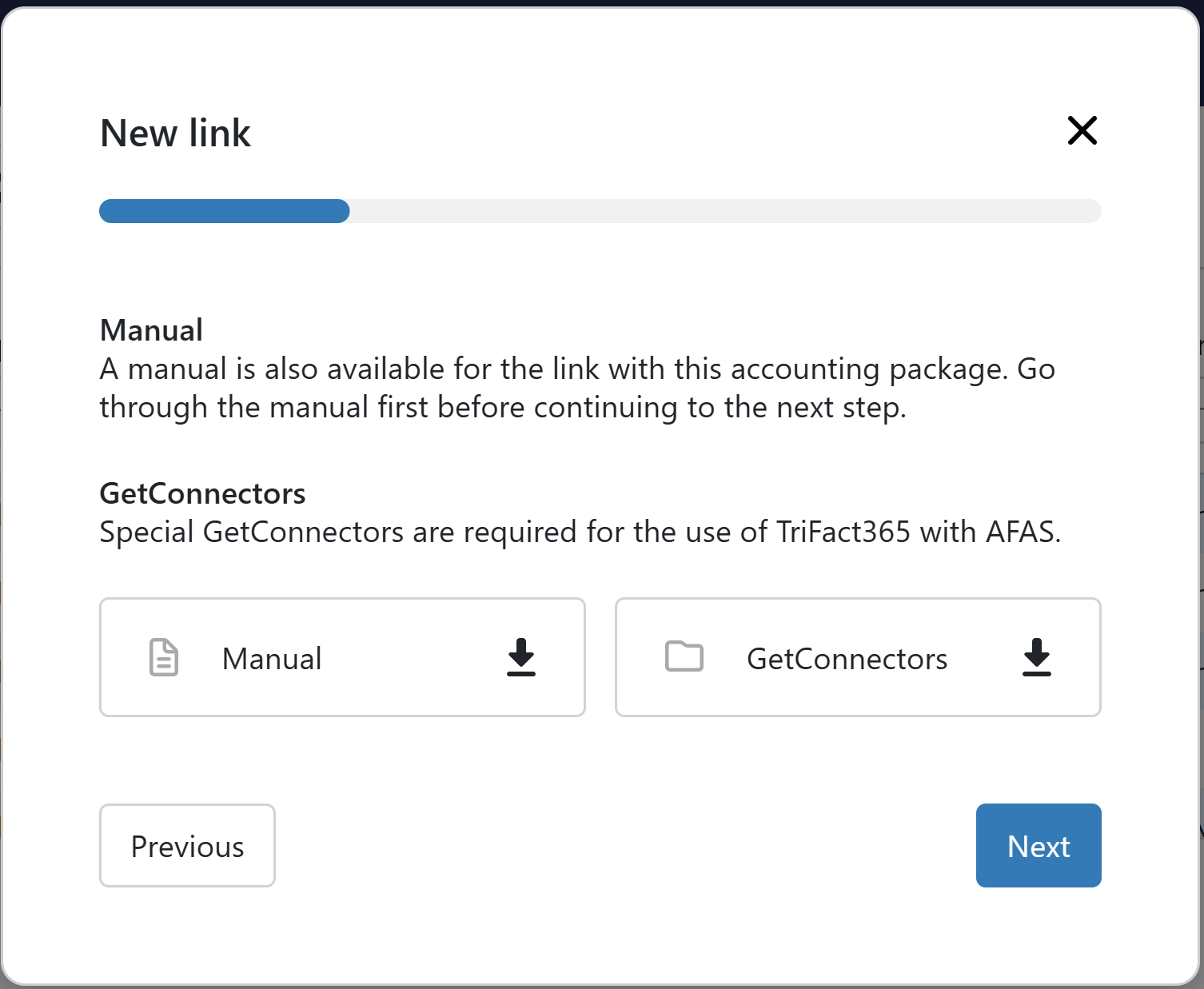
Download the installation manual, download and install the GetConnectors and click Next in TriFact365.
Step 3
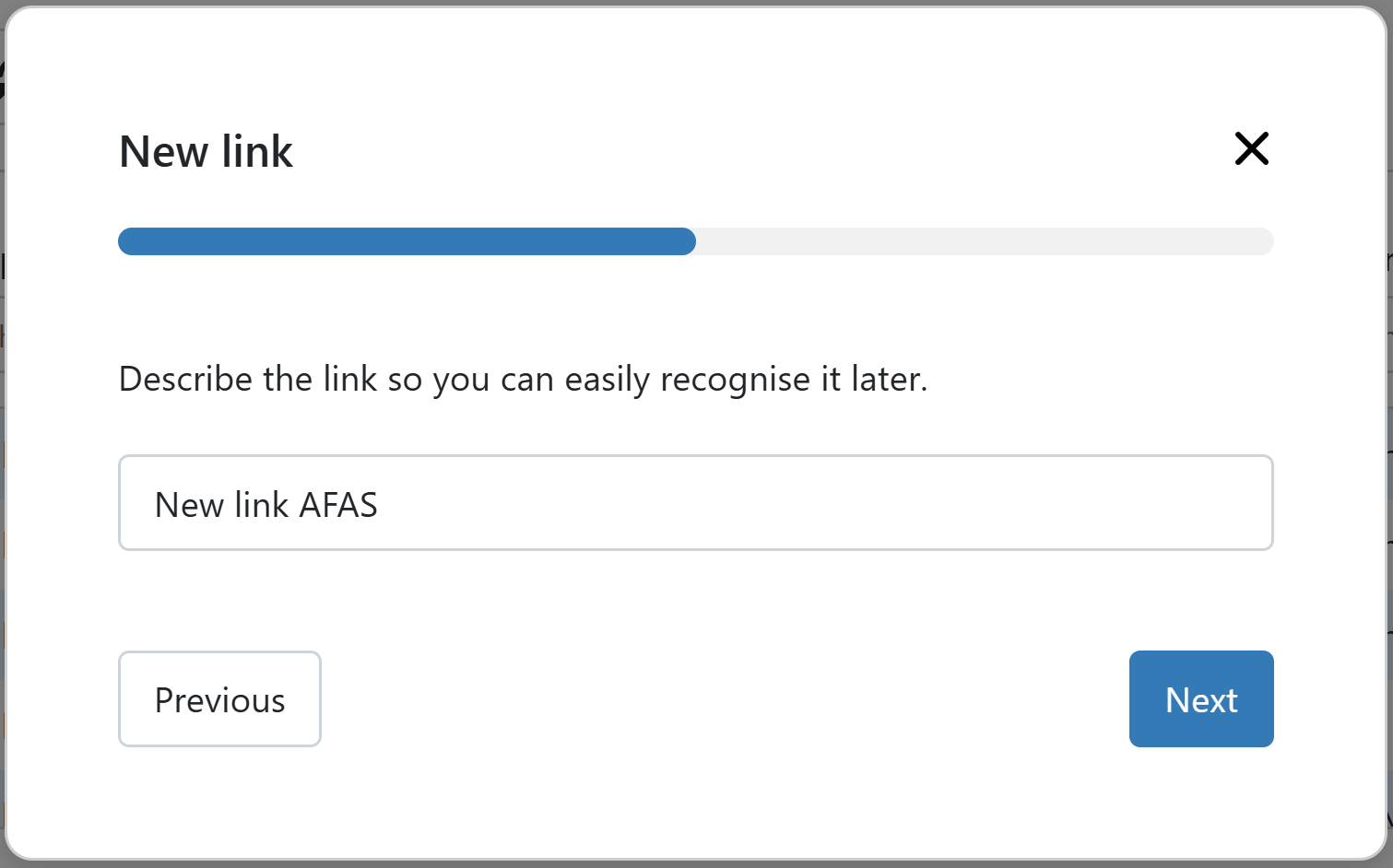
Give a recognisable description to the link with AFAS and click on Next.
Step 4
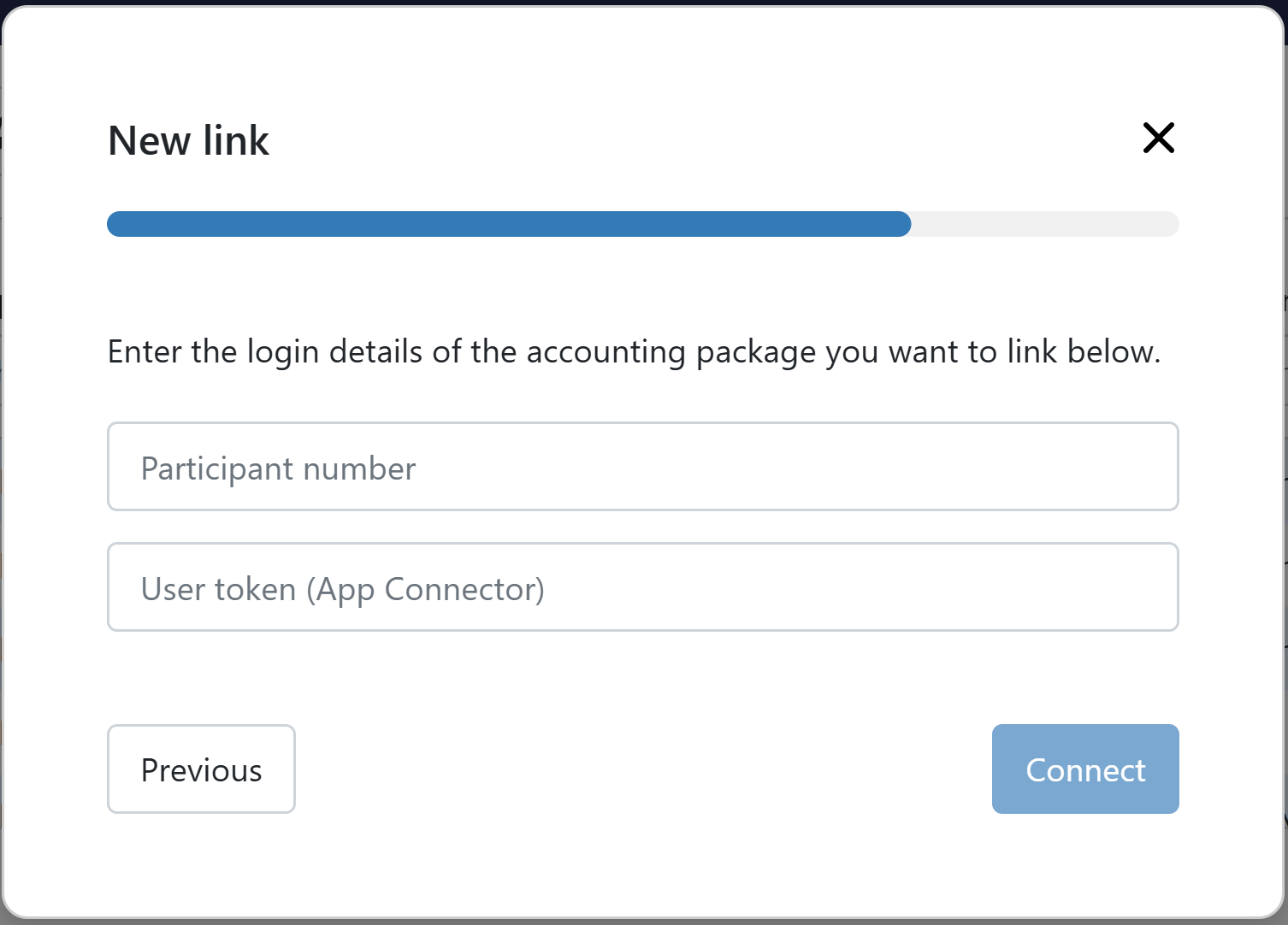
Give in the Participant number and User token (App Connector). In our manual it is discriped where you can find this information.
Click Finish. The link has now been set up, and you can immediately add one or more administrations from the link.
Multiple administrations?
Do you want to add administrations from multiple AFAS Profit environments? If so, you need to set up a separate link for each environment. This is because the GetConnectors and App Connector are configured at environment level.
Frequenly Asked Questions
Where can I find my participant number?
Where can I find my participant number?
The participant number is the red number in the username provided by AFAS: “AOL\12345.xxxx”.
I have just set up a link with AFAS and added an administration, but not all master data is coming through in TriFact365.
I have just set up a link with AFAS and added an administration, but not all master data is coming through in TriFact365.
You may not have added all GetConnectors to the TriFact365 App Connector. If any GetConnectors are missing, not all data can be retrieved.
Use our manual to check whether all GetConnectors have been added. Make sure to also check the three Profit GetConnectors.
Was this helpful?
Still need help? Ask the team