Upload via the portal
Upload documents using the upload function in the portal.
Written By Tess Hoogeboom
Last updated 5 months ago
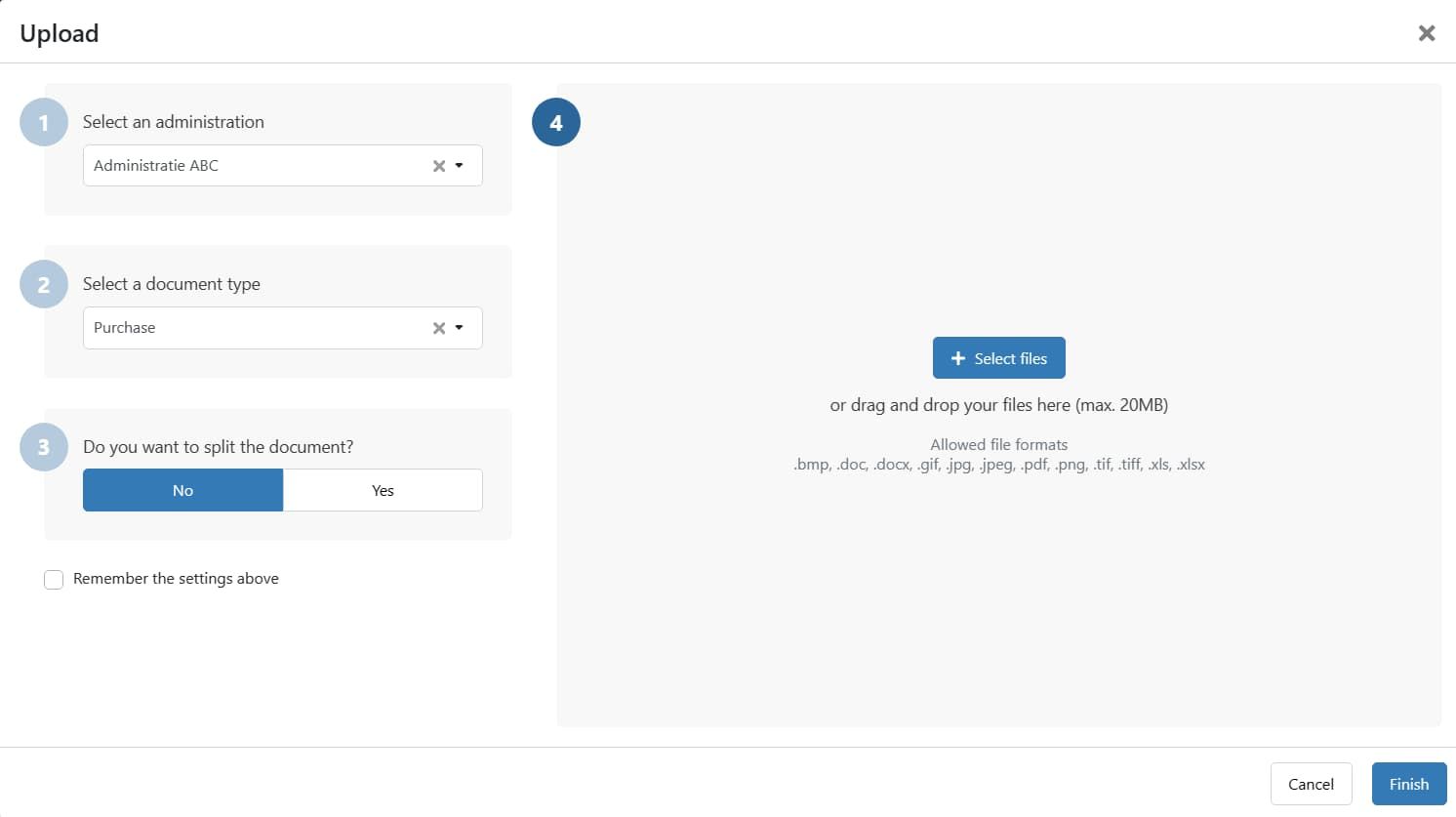
Uploading documents
Click on Upload (+) in the vertical menu.
Do you have more than one administration in your environment? If so, first select the Administration to which you want to add the document.
Select the Document type. By default, “Purchase” is selected
Determine whether the document needs to be split. By default, this setting is set to NO.
Does the document contain one invoice? Then select NO.
Does the document contain multiple invoices? Then select YES.
Next, select your files or drag and drop them into the gray box. Click Finish when the upload is complete.
Remember the settings above
Would you prefer different default settings for ‘Type’ and ‘Split’? Then adjust the selections and check ‘Remember the settings above’. After you’ve finished uploading, these selections will be filled in by default next time.
Note
A file may be up to 20MB in size.
It is not possible to select YES for splitting when uploading images.
UBL invoices can only be submitted via email. See the article below for more information.
Upload by e-mail
Related articles
Uploading via online (cloud) storage
Receiving e-invoices through Peppol
Frequently Asked Questions
How can I ensure a high standard when uploading documents?
How can I ensure a high standard when uploading documents?
Always upload the original document
Upload .PDF and Word files via de portal or e-mail
Upload receipts via the TriFact365 mobile app
Which file formats does TriFact365 accept?
Which file formats does TriFact365 accept?
TriFact365 accepts the following file formats in the portal:
.bmp, .doc, .docx, .gif, .jpg, .jpeg, .pdf, .png, .tif, .tiff, .xls, .xlsx.
Do you want to upload UBL invoices (.xml)? You can only submit these via email. See the article below for more information:
Was this helpful?
Still need help? Ask the team