Unblock/Block for Payment (Exact Online)
Written By Tess Hoogeboom
Last updated 14 days ago
When you use the Entry before confirmation function in TriFact365, the entries will be posted in Exact Online but blocked for payment. These entries will be unblocked when confirmation is finalised. Read below to find out exactly how this works.
Please note!
Make sure there are no invoices with the status Confirm. If there are and you enable Entry before confirmation these invoices will NOT be posted to the accounting software.
Settings
Go to Settings (cogwheel) → Administrations, check the Entry before confirmation box next to the relevant administration, and click Save.
Click (•••) → Edit on the administration and go to the Settings tab.
Under Confirmation settings select a payment condition to be used for posting the invoices as “Blocked for Payment.” This must be a payment condition with the payment method Cash in Exact Online.
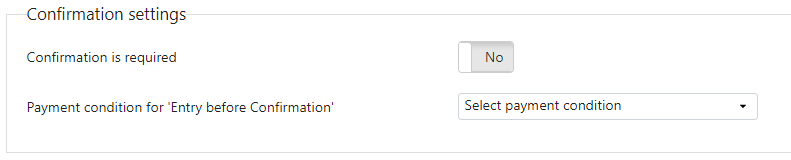
The invoices will now be posted with this payment condition.When an invoice has been confirmed in TriFact365, the payment condition will be changed to the condition set for this journal entry.
Creating a Payment Condition in Exact Online
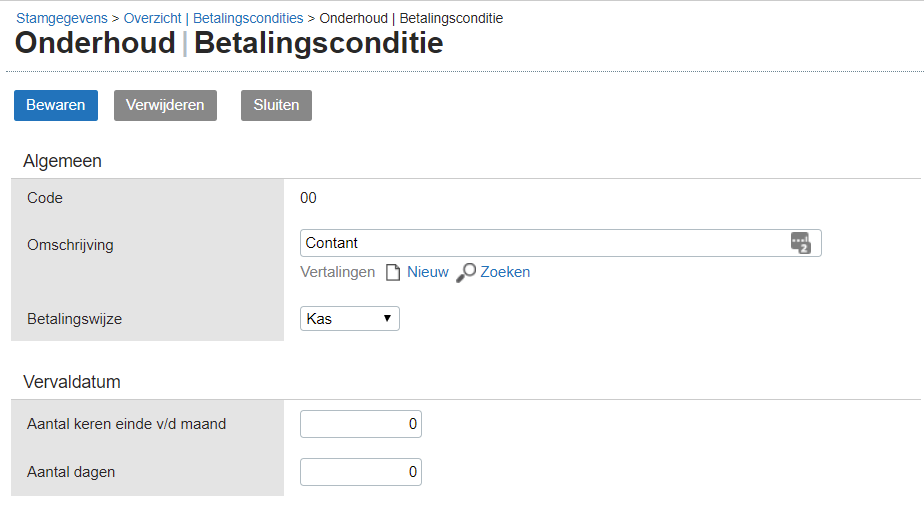
A default payment condition with the payment method Cash is available in Exact Online. If this payment condition is not available or you would like to add own one go to:
Stamgegevens → Relaties → Betalingsconditie → Nieuw . Put the Payment method on Cash, set the Days on 0 and give the payment condition a distinctive Description.
Important!
Never change the payment term in Exact Online when working with Entry before Confirmation. TriFact365 will do this automatically as soon as confirmation is completed in TriFact365.
Important!
Do not process the journal entry in Exact Online until the confirmation workflow is complete. Otherwise, TriFact365 will no longer be able to change the payment condition.