Set up automatic email forwarding
Written By Tess Hoogeboom
Last updated 4 months ago
To automatically send invoices via, for example, an Outlook or Gmail account, you can check the following steps.
Step 1
Set rules for the automatic forwarding of e-mails to the unique e-mail address of your administration. You can find this unique e-mail address at Administrations via the Settings (cogwheel).

Considerations:
Do you want to forward all e-mails or only the ones with a PDF- or UBL-file attached?
Do you want to forward the e-mails from a specific mailbox (invoices@???.com) or from a folder in a mailbox (Folder – Invoices under administration@companyname.com)?
Check the links below for more information on setting up e-mail forwarding:
Step 2
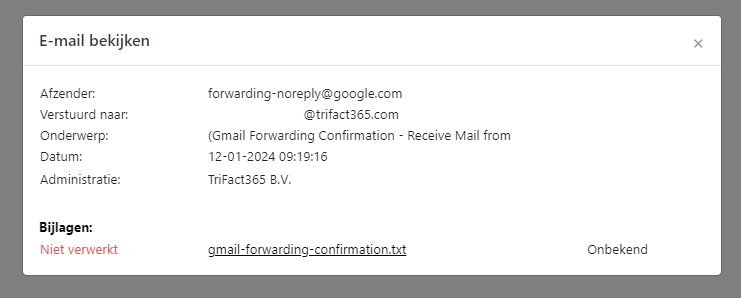
For a Gmail account, a verification link is now sent to the unique email address in TriFact365. In TriFact365, go to the Received emails. Here you will find an e-mail sent by forwarding-noreply@google.com with the subject ‘Gmail forwarding confirmation’. By opening the View email (Three dots > View) you will find a .txt file as an attachment. This file contains the verification link.
Related articles
Was this helpful?
Still need help? Ask the team