Splitting documents
If a document contains more than one invoice you can split this document into separate invoices.
Written By Tess Hoogeboom
Last updated 4 months ago
In TriFact365, uploaded documents that contain multiple booking documents can be split using the Split status. Documents can be assigned the Split status in the following ways:
Go to Upload in TriFact365 and select “Do you want to split the document” Yes in step 3.
Send an email to the administration’s email address with Bulkinkoop, or Bulkverkoop in the subject line.
Go to the Backlog in TriFact365, select the relevant invoice, and choose Split.
Split documents
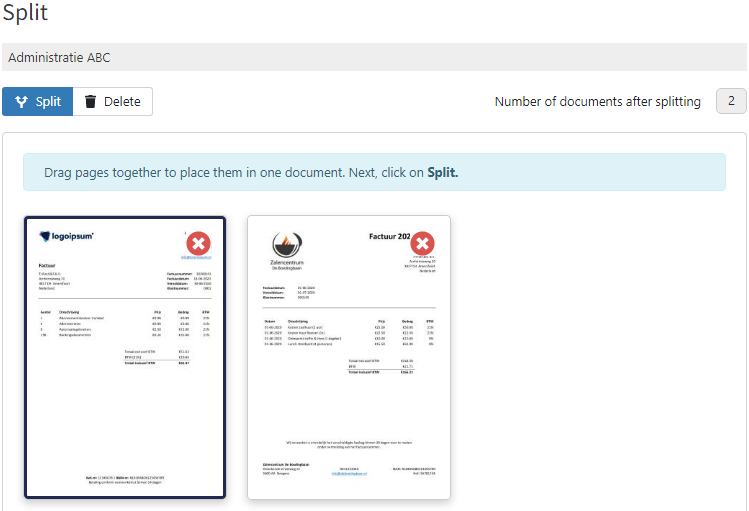
To split the documents, click the Split status next to a document in the Backlog.
Drag pages that belong together next to each other.
Click a page to view it enlarged in the PDF viewer.
To delete a page, click the red cross in the top-right corner of the page.
To restore a deleted page, click the green plus.
In the top-right corner of the split panel, you can see how many documents the bulk document will be split into based on your selection.
When you are finished, click Split. The grouped pages will then be added to the workflow as separate booking documents.
Note
If you delete a page and then submit the split, the page will be permanently deleted and cannot be recovered.
Frequently Asked Questions
How are the costs of a split document calculated?
How are the costs of a split document calculated?
If a document is split into multiple documents, TriFact365 only counts the individual documents. In that case, the original document that was split is not counted.
Related articles
Was this helpful?
Still need help? Ask the team