Notes for the AccountView connection
The settings and points to note when you connect TriFact365 to AccountView.
Written By Tess Hoogeboom
Last updated 8 days ago
Do you connect TriFact365 with AccountView? Then these settings and notes apply.
Additional settings in AccountView
Turn on Bruto-invoer
Do this before you process invoices. Otherwise, the invoices do not arrive correctly in AccountView.
In AccountView, go to Dagboekbladzijden and open the properties of the journal in which you process invoices.
Select only Bruto-invoer.
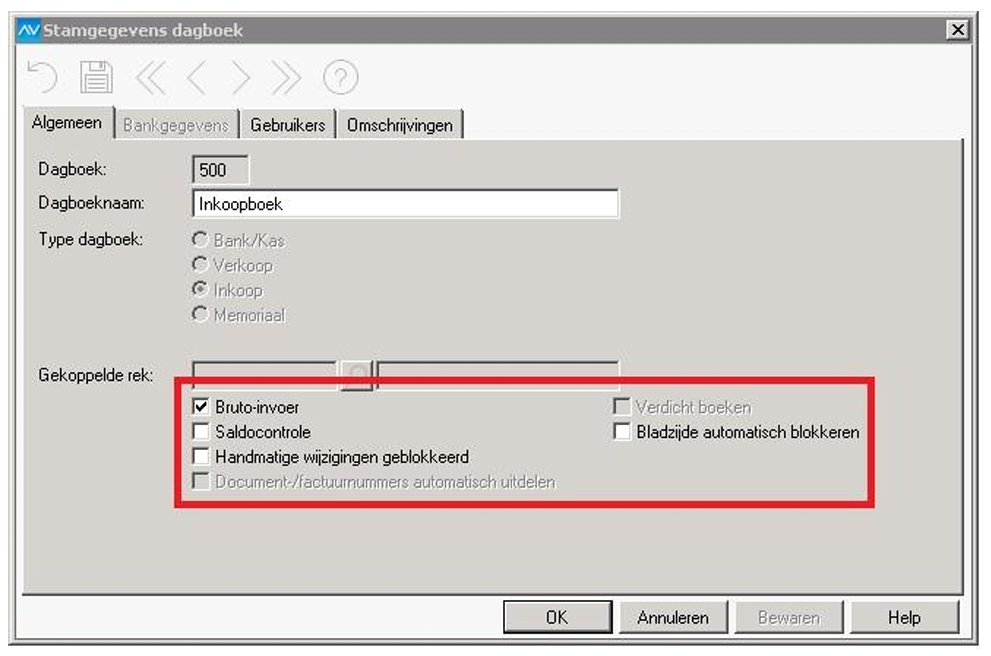
Turn on automatic numbering
Do you want to create suppliers and customers in TriFact365? Then turn on automatic numbering in AccountView.
In AccountView, go to Opties → Instellingen → Administratie → Financieel → Financieel II.
Select Debiteuren/crediteuren automatisch nummeren.
Set up the number settings if needed.

Check settings
Some features in the Check screen require additional settings. Read more in:
Post to a cost centre and project
Creating suppliers and customers in a different financial year (AccountView)
Entry settings
At company level, you choose various default settings. Read more in:
Approval settings
Do you work with approval? Read more in:
Finding the PDF in AccountView
TriFact365 can send the PDF to AccountView. This requires additional settings in AccountView. Read more in:
Frequently asked questions
How does year-end processing in AccountView work with TriFact365?
How does year-end processing in AccountView work with TriFact365?
AccountView automatically adds the new financial year to the same company as the old financial year. TriFact365 then processes invoices in the new financial year as usual, provided you have done the year-end processing correctly. Read how in Eindejaarsverwerking in AccountView (in Dutch).
Was this helpful?
Still need help? Ask the team