Rejected documents
How to find rejected documents and restore or delete them.
Written By Tess Hoogeboom
Last updated About 11 hours ago
Does someone reject a document during authorisation or approval, in the portal or in the app? Then the document gets the status Rejected. You can then restore, skip or delete it.
Finding rejected documents
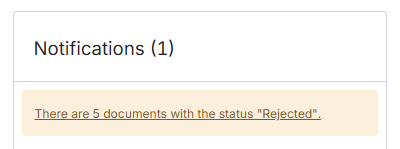
Administrators and users with the Check right see a notification when there are rejected documents:
On Home. Click the notification to go to the Rejected documents screen. There you see the rejected documents, with the company for each document.
In Overview | Current company. Click the notification to go to the Work queue, filtered on the status Rejected.
Restore a rejected document
In the Status column, click Rejected next to the document.
Choose an action:
Restore: the document goes back into the process. Was it rejected during authorisation? Then it gets the status Authorise. Was it rejected during approval? Then it gets the status Check, so you can adjust the entry proposal.
Skip: you skip this document. It stays rejected.
Delete: the document is deleted. You need the Delete right for this, and it cannot be undone.
Do you use Post before approval? Then first delete the entry for this invoice in your accounting package. Then restore the document and post it again.
Restore several documents at once
Select the documents on the Rejected documents screen or in the Work queue and click Restore in the toolbar.
Related articles
Was this helpful?
Still need help? Ask the team