Authorisation of documents
How to accept or reject documents waiting for your authorisation, in the portal and in the mobile app.
Written By Tess Hoogeboom
Last updated 5 days ago
With authorisation, you accept or reject a document before the entry proposal is checked. You can do this in the portal and in the mobile app.
Authorise in the portal
There are three ways to open the documents waiting for your authorisation:
On Overview | Current company, click the Authorise tile.
On Home, in the Work queue per company table, click the number in the Authorise column.
Go to the Work queue and click the Authorise status next to a document.
Accept, reject or skip
On the right you see the document, on the left the authorisation details. You can:
Accept: the document moves on to the next stage of the authorisation scheme, or to the status Check after the last stage.
Reject: the document gets the status Rejected. Read more in Rejected documents.
Skip: the document keeps the status Authorise, so you can review it later.
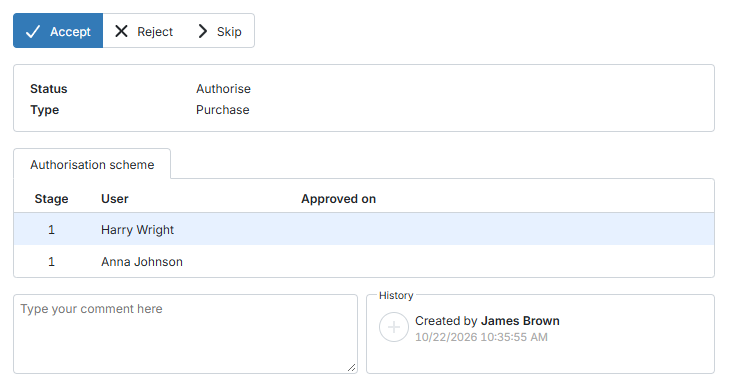
Comment and History
If needed, type a comment in the box below the authorisation details. After you accept, reject or skip, your comment appears in the History on the right of the screen.
Display options
With the display options you change the layout of the screen. For example, place the document on the left or change its size. Read more in Display options.
Authorise in the mobile app
On the start screen, tap Authorise.
Choose the company. You see the first document waiting for your authorisation.
You can:
Accept: tap the green button or swipe right.
Reject: tap the red button or swipe left.
Add a comment: tap History, type your comment and tap the paper plane.
Skip: tap the three dots and then Skip.
Want a notification on your phone when documents are waiting for you? In the app, go to Settings → Push notifications.
Email reminders
You can also receive an email when documents are waiting for your authorisation. Read how in Email reminders.
Frequently asked questions
What happens to rejected documents?
What happens to rejected documents?
A rejected document gets the status Rejected. You can then delete or restore it. If you restore it, it gets the status Authorise again. Read more in Rejected documents.
What is the difference between authorisation and approval?
What is the difference between authorisation and approval?
Authorisation takes place before checking. You accept or reject the document as soon as it arrives in TriFact365.
Approval takes place after checking. You accept or reject the entry proposal. After approval, the entry is sent to your accounting package.
Related articles
Authorisation and approval overview
Create and set up authorisation schemes
Was this helpful?
Still need help? Ask the team