Create and set up approval schemes
How to create an approval scheme, set up the workflow and choose which companies it applies to.
Written By Tess Hoogeboom
Last updated About 5 hours ago
With an approval scheme, you decide who approves an entry proposal before the entry goes to the accounting package. You set up a workflow with one or more stages and choose which companies the scheme applies to.
Only an Administrator can create an approval scheme.
Give the users who will approve the Approval right. See User rights.
Assign those users to the companies. See Assigning users to companies.
Turn on approval: go to Settings (cogwheel) → Companies, select Approval for the company and click Save.
Create the scheme
Go to Settings (cogwheel) → Approval schemes and click New.
Under General, enter a recognisable description.
Set up the workflow
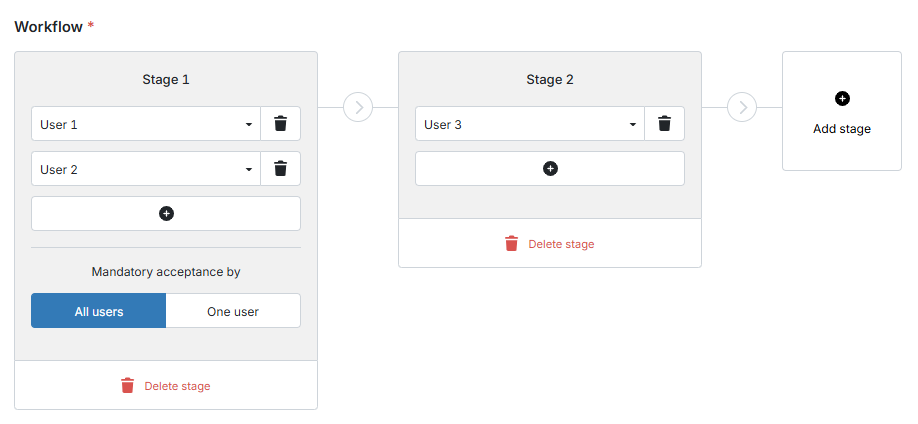
The workflow consists of one or more stages, each with one or more users who approve the entry proposal. A document first goes through stage 1. Once that stage is complete, it moves on to stage 2, and so on. A workflow has up to 5 stages, and a stage up to 10 users.
Under Workflow, click the plus sign. Stage 1 appears.
Choose a user under Select a user.
Want more users in this stage? Click the plus sign again.
Do you have more than one user in a stage? Then choose under Mandatory acceptance by:
All users: all users in this stage must approve.
One user: one of the users in this stage must approve.
Click Add stage for the next stage, or Delete stage to remove a stage.
Set up companies
Finally, choose under This scheme is available for which companies the approval scheme applies to:
All companies: all companies that have approval turned on.
Selected companies: move the companies from Available companies to Selected companies.
Click Save. You see the message Approval scheme created.
Unlike authorisation, a company can use more than one approval scheme. You then choose the scheme for each invoice in the Check screen. See Checking entry proposal.
Good to know
Do you change a scheme that is already in use? Then the changes only apply to new documents.
How to approve documents in the portal and the mobile app: Approval of documents.
How to set up email reminders for documents awaiting approval: Email reminders.
Tips for the workflow: Tips for setting up an approval scheme.
Frequently asked questions
There is a lock icon next to Approval schemes under Settings (cogwheel). What should I do?
There is a lock icon next to Approval schemes under Settings (cogwheel). What should I do?
Approval is not available with a Standard subscription. To use it, upgrade to a Plus subscription. Please contact our support team.
What is the difference between Authorisation and Approval?
What is the difference between Authorisation and Approval?
Authorisation takes place before the document is checked: you accept or reject the document as soon as it arrives in TriFact365.
Approval takes place after the document has been checked: you accept or reject the entry proposal. After approval, the entry goes to your accounting package.
How do I approve a document?
How do I approve a document?
In the portal or the mobile app. See Approval of documents.
Can I receive a notification when documents are ready for me to approve?
Can I receive a notification when documents are ready for me to approve?
Yes. Set up Email reminders in the portal. In the mobile app, turn on push notifications in the settings.
Was this helpful?
Still need help? Ask the team