Received emails
In Received emails you see all emails sent to a company, and which attachments were processed.
Written By Tess Hoogeboom
Last updated About 2 hours ago
In Received emails you see all emails sent to the current company. In the menu, go to Inbox → Received emails.
Only an Administrator or a user with the Mailbox right can open Received emails.
Do you want to see the emails of all your companies? Then open All received emails via Overviews on Home. There you can also filter by company.
Search and sort
Filter by Sender, Subject, date and Processed attachments. Click a column header to sort by that column.
Attachments that were not processed
Is there a red icon in the Processed attachments column? Then the email did not contain any valid attachments. An attachment that was processed correctly appears in Received documents; an attachment that was not processed does not appear there.
View an email
Click View next to an email. For each Attachment you see whether it was Processed, with the reason in the Remark column if it was not. If the email had no attachments, you see No attachments.
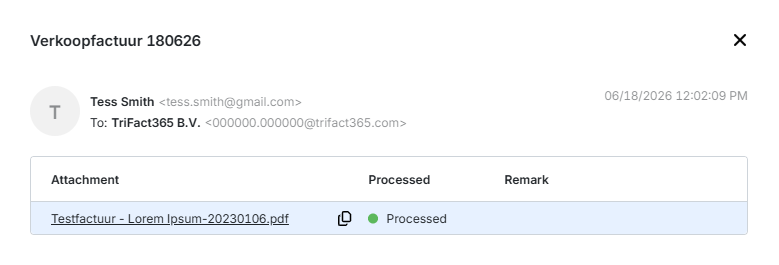
Is an attachment missing, although it was included in the email? Then the file has an invalid format. Read Upload by email to see which formats are allowed.
SPF check failed
SPF check failed
Read Error message: SPF check failed when uploading an email to learn what this message means and how to solve it.
Related articles
Error message: SPF check failed when uploading an email
Upload by email: Disable authentication of sender
Was this helpful?
Still need help? Ask the team