Set up two-factor authentication
Written By Tess Hoogeboom
Last updated 4 months ago
Using two-factor authentication, you add an extra layer of security to your account. Learn how to set up two-factor authentication in this article.
Set up two-factor authentication
In TriFact365 go to user icon in the blue menu bar and open Personal settings.
Set Two-factor authentication to Yes.
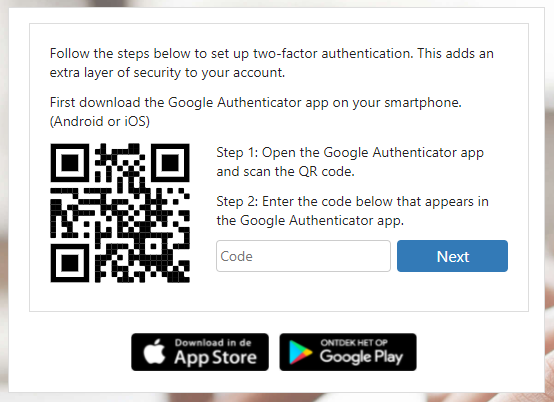
Scan the QR code that appears on your screen using an Authenticator app. We recommend using Google Authenticator (Android / iOS), but several apps are suitable.
Enter the code displayed in the Authenticator app and click Next.
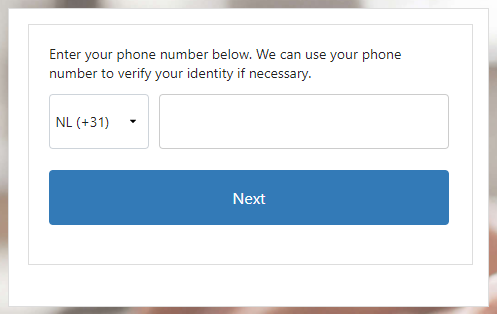
Enter your phone number on the next screen. If you have previously entered this in your personal settings, it will be filled automatically. We use this phone number to restore two-factor authentication if necessary.
Two-factor authentication is now set up successfully.
Log in with two-factor authentication
After logging in with your email address and password, you need to perform an extra step.
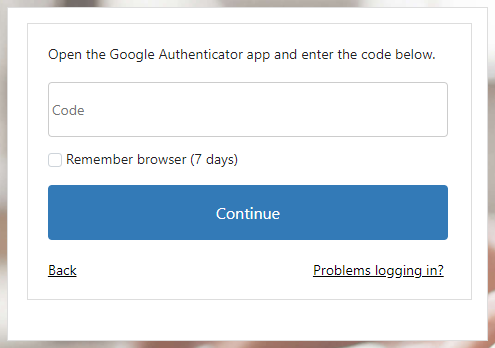
Open the Authenticator app and enter the generated code.
Optionally, you select Remember browser (7 days). When logging in, you no longer have to enter a code for this browser for 7 days.
Note
The login process can only take up to five minutes. If you exceed this time, you will be logged out automatically and sent back to the login screen. You must now log in again with your username and password.
Problems with logging in
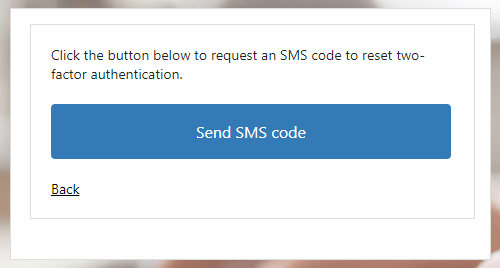
Can’t log in with a code? Then select the option Problems logging in? You can then request an SMS code to reset two-factor authentication.
This SMS code will be sent to the phone number specified in your personal settings. In addition, a confirmation email of this request will also be sent to the linked email address.
Click on the Send SMS code button to receive the code.
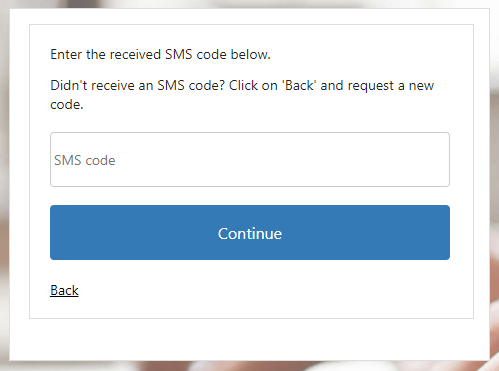
Enter the code you received and select Continue.
You will now be prompted to reset two-factor authentication according to the steps previously mentioned.
Disable two-factor authentication
If you no longer want to use two-factor authentication, you can disable it.
In TriFact365 go to user icon in the blue menu bar and open Personal settings.
Set Two-factor authentication to No.
Then enter your password to disable two-factor authentication.
Administrators within a TriFact365 environment also have the option to disable two-factor authentication for other users.
In TriFact365, go to Settings (cogwheel) → Users → Three dots → Edit at the line of the relevant user.
Set click Reset two-factor authentication.
Was this helpful?
Still need help? Ask the team