Upload via the mobile app
With the mobile app, you can take photos of receipts and upload them to TriFact365.
Written By Tess Hoogeboom
Last updated 10 days ago
With the mobile app, you take photos or scans of receipts and documents and upload them directly to a company in TriFact365.
Haven’t downloaded the mobile app yet? Download it from the App Store or Google Play Store and log in with your email address and password.
Upload photos and scans
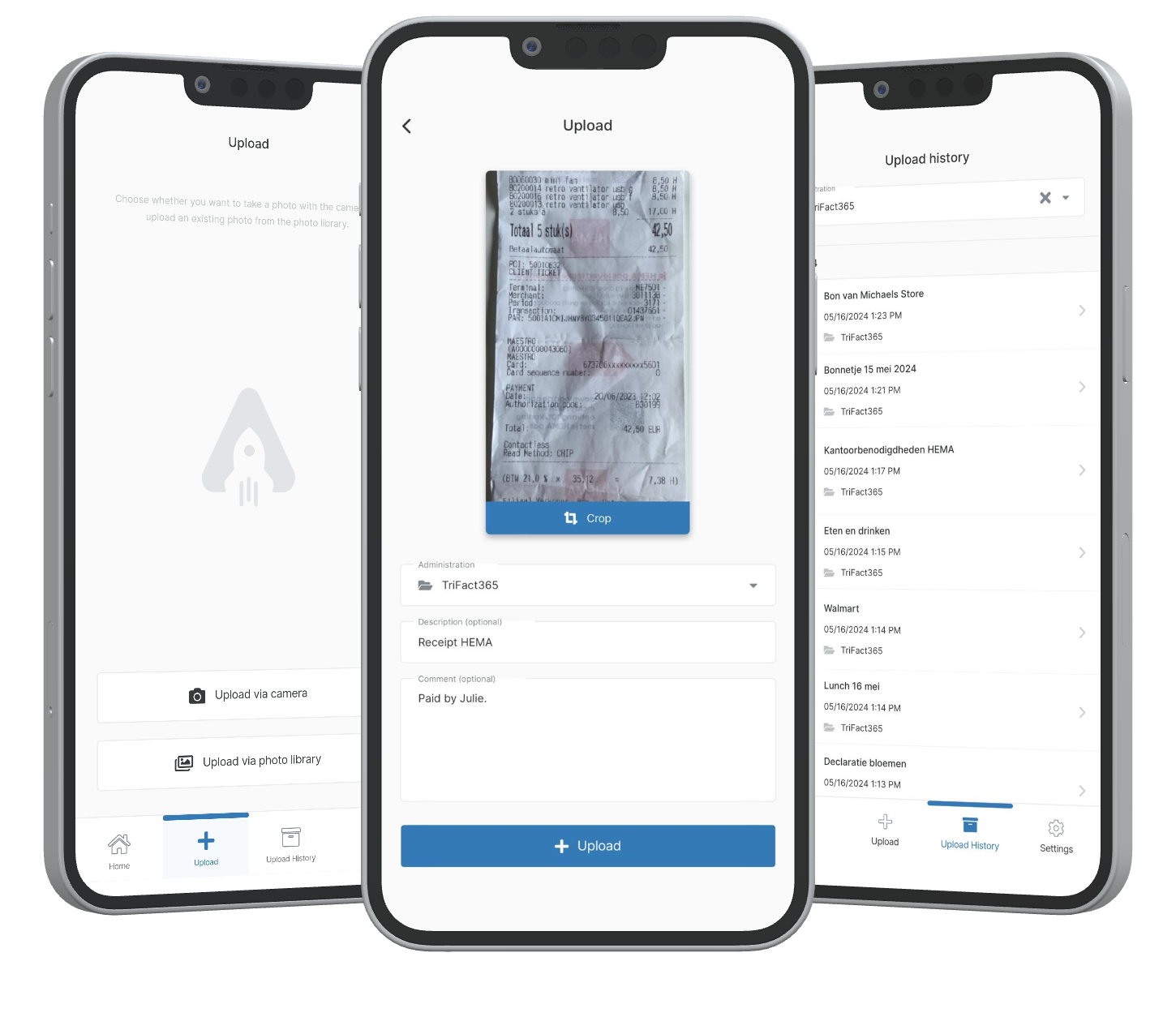
Click Upload in the menu.
Choose one of these options:
Scan document: place the receipt or document in your camera’s view. The app makes a scan automatically.
Take photo: take a new photo with the camera.
Select photo: select an existing photo from your gallery.
Want to crop the photo? Here’s how:
Click Crop.
Move the corners or sides.
Click Confirm.
Select a Company.
Add a Description or Comment if you like. The description becomes the file name in the portal, and the comment goes into the document’s history.
Click Upload. A notification at the top of your screen shows that the photo has been uploaded.
Upload History
In the Upload History menu item, you find all uploaded photos sorted by month, with their details (date/time, company, description and comment).
If you want, filter by company at the top of the screen to show only the uploads for one company.
This overview only contains photos uploaded via the mobile app. An Administrator sees all uploaded documents in Received documents.
Related articles
Was this helpful?
Still need help? Ask the team