Archive
Written By Tess Hoogeboom
Last updated 25 days ago
TriFact365 stores all documents and entries in a well-organized digital archive for as long as you remain a customer. Some accounting software packages do not allow you to attach a PDF document when creating a journal entry. Fortunately, you can always access these documents in the TriFact365 digital archive.

By default, the most recent journal entry is displayed first in the list based on the invoice number. All columns have filter and sort options, in case you’re looking for a specific journal entry or a selection of journal entries.
Actions
A number of (bulk) actions are available. These are listed above the table from left to right:
Refresh – Refresh the table contents.
Delete – Delete the selected journal entries (and documents) from the Archive. This action cannot be undone.
Export Table
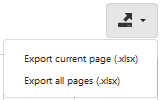
You also have the option to export the table’s contents to an Excel file. You can do this using the export button at the top right of the table.
View document (and journal entry)
Double-click the row to view the document.
Or click the View action via the menu (•••) in the Invoice Number column.
Download document
Click the Download action via the menu (•••) in the Invoice Number column.
Frequently Asked Questions
Is it possible to export the archive all at once?
Is it possible to export the archive all at once?
Upon request, we can export the archive for you. With this export, you will receive
An overview of the entries as shown in the archive and
a folder containing all PDF files of these entries. The cost for this is €80, excluding VAT, per 10 administrations.
If you would like to use this option, please contact support.
How long are documents stored in the online Archive?
How long are documents stored in the online Archive?
All processed documents (invoices, receipts, etc.) are stored in the online Archive for as long as you remain a TriFact365 customer. If you cancel your subscription, you will no longer have access to the Archive.
Please note that when you delete an administration in TriFact365, the corresponding Archive for that administration is also permanently deleted from TriFact365.
I have multiple administrations in TriFact365. How do I switch to the archive of one of my different administrations?
I have multiple administrations in TriFact365. How do I switch to the archive of one of my different administrations?
You can easily switch administrations using the Administration Switcher in the blue menu.
Click administration in the blue menu.
The Administration Switcher opens and displays a list of administrations that your user account has access to.
Select the administration you want to work in.
If you go to Overview → All processed documents in the menu, you will be taken to the archive containing documents from all your TriFact365 administrations.
Was this helpful?
Still need help? Ask the team