Merge documents
Written By Tess Hoogeboom
Last updated 4 months ago
In the Backlog, you can merge two or more documents into a single document.
Go to the Backlog and check the box next to the documents you want to merge. Click the Merge button.

On the left side of the screen, you’ll see the documents that are going to be merged.
Drag the documents before or after each other to determine the order of the merged document.
Click on one of the documents to view it on the right side.
If desired, you can change the filename of the merged document.
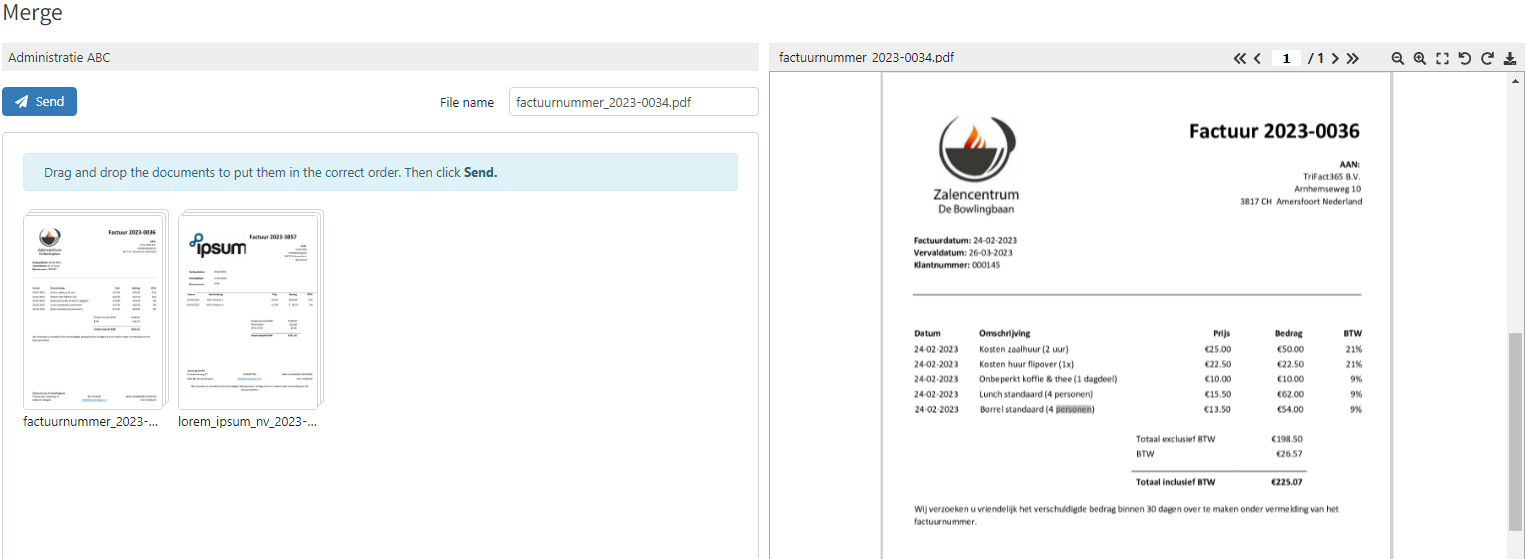
Click Send to permanently merge the documents. After this, the merged document will have the status Recognition and will eventually enter the workflow.
Note!
You can only merge documents from the same administration.
Documents with the Confirm status cannot be merged.
The file name of the first document will be used as the file name of the merged document
Was this helpful?
Still need help? Ask the team