Display Options
Written By Tess Hoogeboom
Last updated 4 months ago
In the Check screen you can change your display settings. For example, you can turn different dimensions on or off and change the layout of the screen. Click on Display options underneath the blue header.
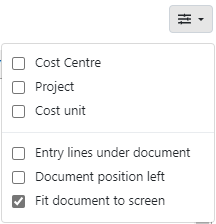
Cost center, Project, Cost unit
Depending on the accounting software you use, you can check or uncheck dimensions. This allows you to easily hide dimensions on the posting lines if you are not using them. The Description field is automatically expanded.
If you use multiple dimensions, TriFact365 automatically suggests placing the entry lines below the document.
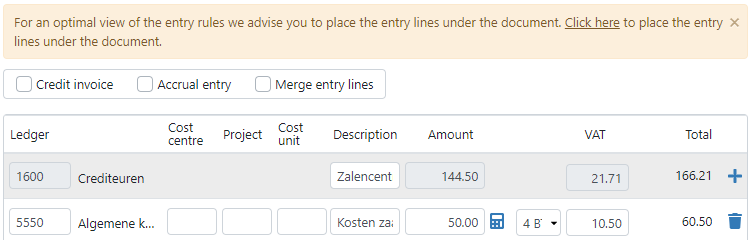
Entry lines under document
For each accounting system, you can set the system to place the journal entries below the document. The journal entries are displayed across the entire screen, allowing you to work with a larger description field. Additionally, we recommend enabling this setting if you want to work with more than three dimensions.
Document position left
You can also choose to display the PDF viewer on the left. By default, this option is turned off.
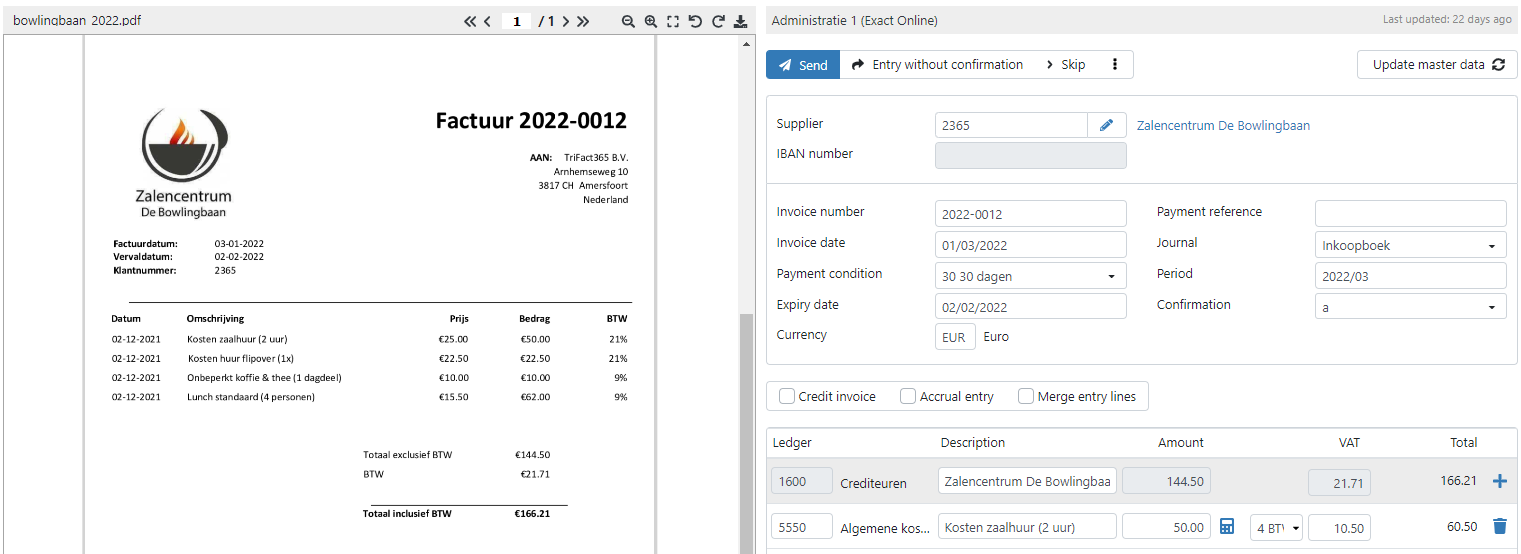
Fit document to screen
With this setting, you can automatically resize the page so that it fits entirely on your screen. This way, you don’t have to manually fit the document to the screen in the PDF viewer every time.
Related articles
Was this helpful?
Still need help? Ask the team