Current company
The Current company screen shows your own work queue, the work queue of the company, the documents awaiting authorisation and approval per user, notifications and quick links.
Written By Tess Hoogeboom
Last updated 5 days ago
The Overview | Current company screen shows the documents to be processed in the selected company.
Do you work with one company in TriFact365? Then this is your start screen.
Do you work with multiple companies in TriFact365? You open this screen from Home by clicking the name of a company.
My work queue
This block shows your own work queue as a visual workflow: for each step, you see how many documents are waiting for you. Click a tile to open the first document in that step straight away, for example in Authorise or Check.

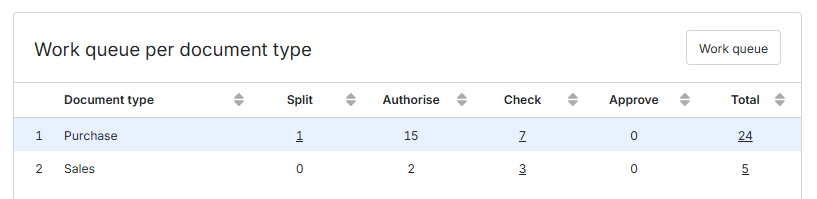
Work queue per document type
This block shows the work queue of the company, broken down by document type and status. Click a number to open the Work queue, filtered on that document type and status. Click Work queue at the top right to see the full list of documents to be processed.
Documents awaiting authorisation and approval per user
These two tables show the five users with the most documents waiting for authorisation or approval, and how long those documents have been waiting: 0-7 days, 7-14 days, 14-30 days and 30+ days. Click Authorisation overview or Approval overview to see all documents in the company that are waiting for authorisation or approval.
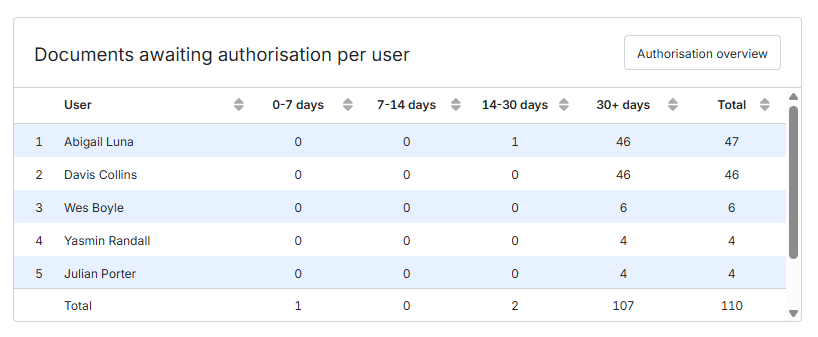
Only an Administrator can see Documents awaiting authorisation and approval per user.
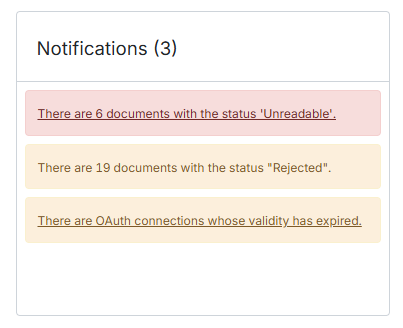
Notifications
On the right, you see important notifications, for example about rejected documents, blocked connections or connections that have expired. Click a notification to go to the place where you can solve it.
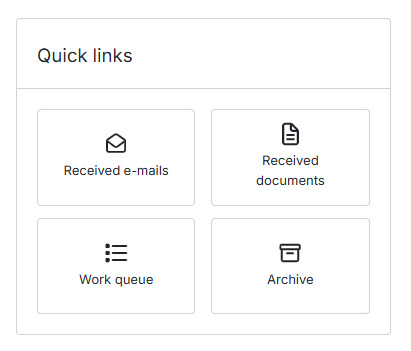
Quick links
Depending on your user rights, you can open:
Received e-mails
Received documents
Work queue
Archive
Related articles
Authorisation and approval overview
Was this helpful?
Still need help? Ask the team