Upload by email: Disable authentication of sender
How to disable the sender check, so that forwarded emails with a failed SPF check are still processed.
Written By Tess Hoogeboom
Last updated 5 days ago
TriFact365 checks for each email whether the sender is allowed to send it. This is the SPF check. If the check fails, the email is not processed. This mainly happens when emails from suppliers are forwarded automatically to TriFact365, because of the SPF settings of that supplier.
Check whether the SPF check failed
Open Received emails.
Click View next to the email.
Does it say SPF check failed? Then that is why the email was not processed.
Read more about this error in Error message: SPF check failed when uploading an email.
Disable authentication of sender
Only an Administrator can change this setting. Disabling it solves the problem with unprocessed emails, but makes the company less secure: TriFact365 then also processes emails from senders that cannot be verified.
Click
•••→ Edit next to the company, or double-click the row.Go to the Settings tab.
Turn on Disable authentication of sender (e-mail delivery).
Click Save.
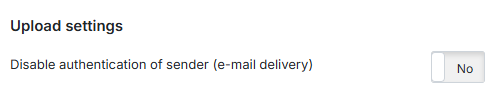
From now on, TriFact365 also processes new emails when the SPF check fails. Resend any emails that were not processed earlier.
Related articles
Error message: SPF check failed when uploading an email
Set up automatic email forwarding
Was this helpful?
Still need help? Ask the team