Log in and change password
How to log in to TriFact365, also with two-factor authentication, and how to change your password.
Written By Tess Hoogeboom
Last updated 10 days ago
You log in to TriFact365 with your email address and password.
Logging in
On the TriFact365 login page, enter your email address and password. Don’t have a subscription yet? Click Free trial to try TriFact365 free for 30 days.
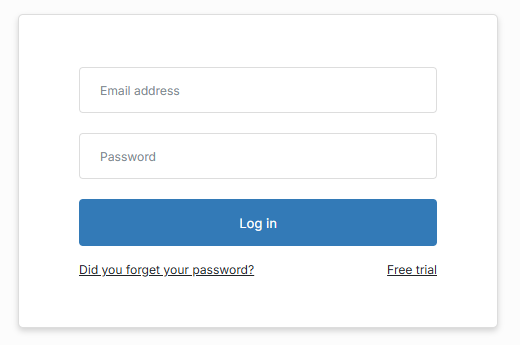
Do you use two-factor authentication? Then there is one more step:
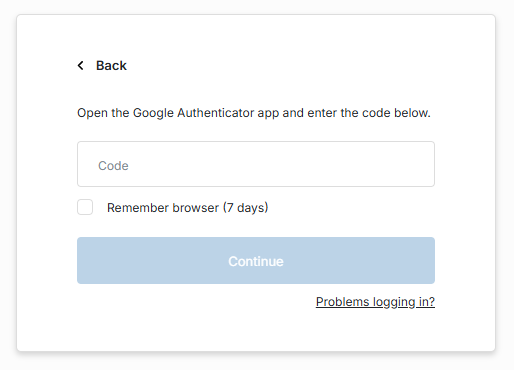
Open the authenticator app and enter the code it shows.
Optionally, select Remember browser (7 days). You then don’t need to enter a code for 7 days when you log in with this browser.
Read Set up two-factor authentication to learn how to set up two-factor authentication.
Forgot your password
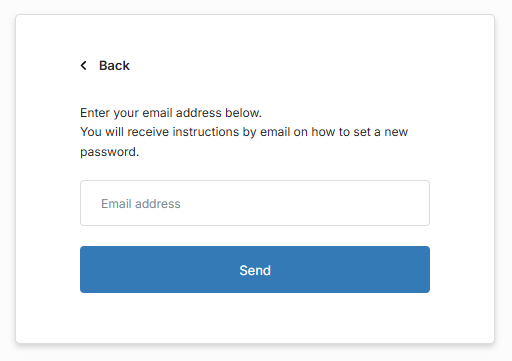
Can’t remember your password? Click Forgot your password? on the login page. Read Forgot your password to learn how to set a new password.
Change your password
The first time you log in, TriFact365 asks you to change your password. After that, you change your password like this:
Go to User icon → Personal settings.
Click Change next to Password.
A password must contain at least:
8 characters
one uppercase letter
one lowercase letter
one digit
one special character
You must renew your password every 210 days.
User deactivated
Haven’t logged in for 210 days? Then TriFact365 automatically deactivates your user for security reasons. When you log in, you see the message Your account has been deactivated due to inactivity. You then automatically receive an email with a link to reactivate your user.
Related articles
Set up two-factor authentication
Error message: Your account has been deactivated due to inactivity
Was this helpful?
Still need help? Ask the team