Backlog
Written By Tess Hoogeboom
Last updated 25 days ago
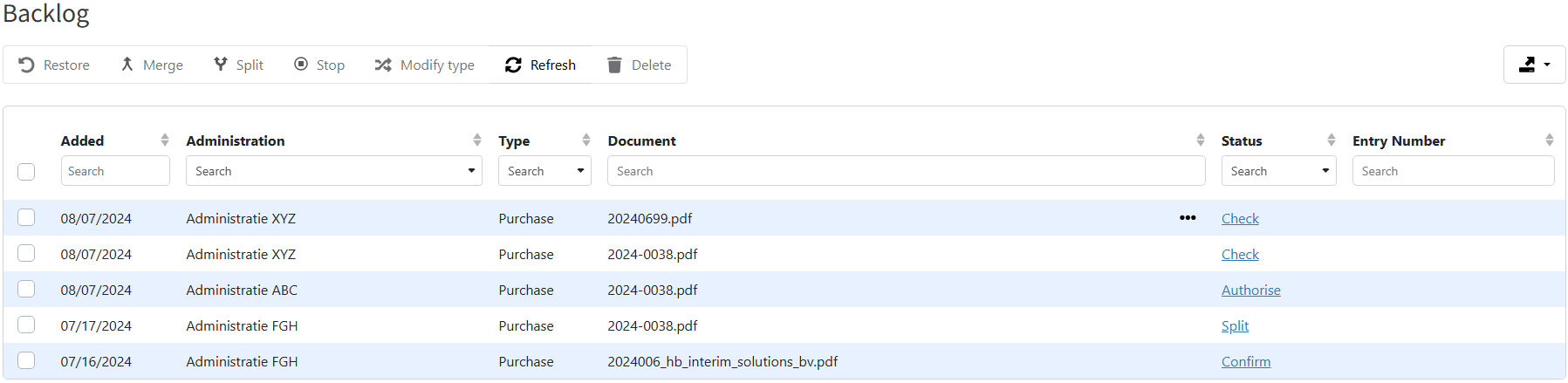
The Backlog contains all documents that still need to be processed.
By default, the most recent document is displayed first in the list. All columns have filter and sort options, in case you’re looking for a specific document or a selection of documents.
Processing documents
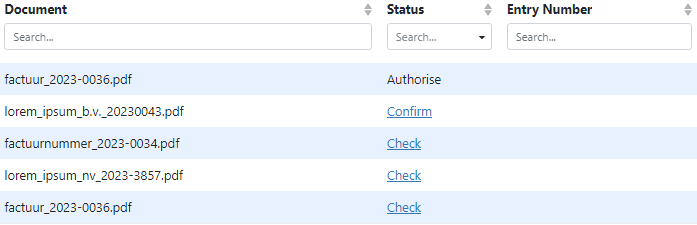
You can process the documents by clicking on the relevant status (Authorise, Check, etc.). Via the menu (•••) in the Document column, you can view the document and download it if necessary.
Actions
A number of (bulk) actions are available. These are listed above the table from left to right:

Restore – Retrieve a document with Rejected status back into the processing process. Rejected documents at Authorise return to Authorise status. Rejected documents at Confrimaion return to the status Check.
Merge – Use this to merge two or more documents into a single document.
Split - Move a document to the status to split it into multiple documents.
Stop – Stop documents that are in the Authorise or Confirm status. The documents will be set to the Rejected status and can be resubmitted for approval if necessary. This action is only available to Administrators.
Modify type (read more) – Use this to change the document type from purchase to sales and vice versa.
Refresh – Refresh the table contents.
Delete – Delete the selected documents from the Backlog. This action cannot be undone.
The actions are also available per document via the menu (•••) in the Document column.
Export Table
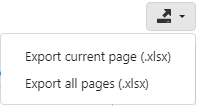
You also have the option to export the table’s contents to an Excel file. You can do this using the export button at the top right of the table.
View documents
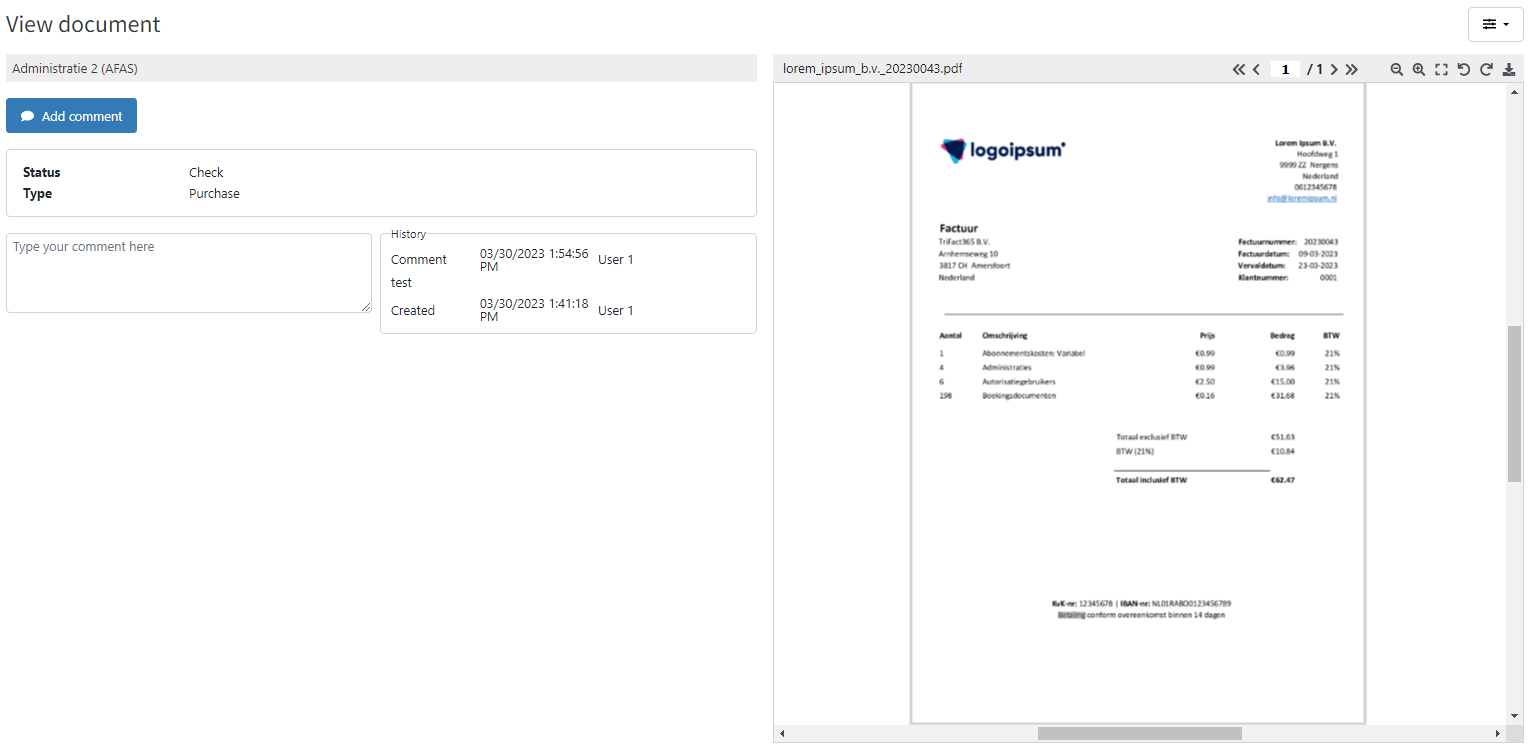
You can view documents by clicking View via the menu (•••) in the Document column. The document, including additional information, will then be displayed.
Frequently asked questions
I have multiple administrations in TriFact365. How do I switch to backlog of one of my other administrations?
I have multiple administrations in TriFact365. How do I switch to backlog of one of my other administrations?
You can easily switch administrations using the Administration Switcher in the blue menu.
Click administration in the blue menu.
The Administration Switcher opens and displays a list of administrations that your user account has access to.
Select the administration you want to work in.
The backlog of the selected administration will open automatically.
How can I get an overview of the backlog for all my administrations?
How can I get an overview of the backlog for all my administrations?
Would you like to an overview of all documents that still need to be processed, regardless of the administration? Go to Overview → All documents to be processed.
This page provides a complete overview of all documents currently in the backlog across your entire TriFact365 environment. This enables you to keep track of documents across multiple administrations without switching between them.
Was this helpful?
Still need help? Ask the team