Work queue
What you see in the work queue, which actions you can take and how to export the table.
Written By Tess Hoogeboom
Last updated 6 days ago
The work queue contains all documents that still need to be processed. The newest document is at the top. You can filter and sort every column, so you quickly find a document or a selection.
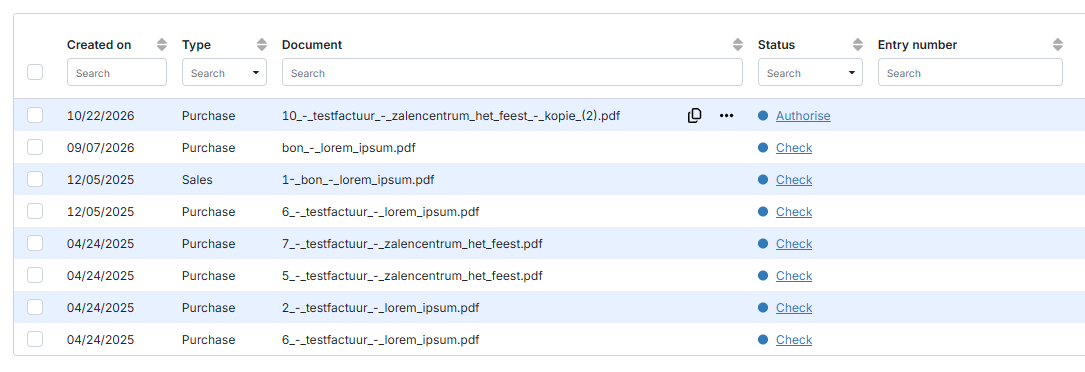
Process and view documents
Click the status of a document (for example Authorise or Check) to process it.
In the Document column, click
•••→ View to see the document with additional information. You can also download the document from the same menu.
Actions
The toolbar above the table has these actions. You can apply them to one or more selected documents.

Restore: puts a rejected document back into the workflow. Rejected during authorisation returns to the status Authorise; rejected during approval returns to Check. You can only restore rejected documents.
Merge: combines two or more documents into one. See Merge documents.
Split: sets a document to the status Split, so you can split it into multiple documents. See Splitting documents.
Stop: stops documents with the status Authorise or Approve. Stopped during authorisation gets the status Rejected; stopped during approval returns to Check. Only an Administrator can stop documents.
Modify type: changes the document type, for example from purchase to sales. See Modify document type.
Refresh: reloads the table.
Delete: deletes the selected documents from the work queue.
Deleted a document by mistake? Click Undo in the message at the top right. Once the message has gone, you can no longer undo it. See Undoing actions.
The same actions are available per document in the Document column under •••.
Export the table
Click the export button at the top right of the table and choose Export current page or Export all pages. You get an Excel file.
Frequently asked questions
I work with multiple companies. How do I go to the work queue of another company?
I work with multiple companies. How do I go to the work queue of another company?
Click the company name in the blue bar at the top.
Choose the company you want to work in from the list.
How do I see the work queue of all my companies at once?
How do I see the work queue of all my companies at once?
In the menu, go to Overviews → All documents to be processed. There you see all documents that still need to be processed, in all your companies. You don’t have to switch each time.
Related articles
Was this helpful?
Still need help? Ask the team