Display options in the Check screen
How to turn dimensions on or off and change the columns and layout of the Check screen.
Last updated 5 days ago
With the display options in the Check screen, you turn dimensions on or off and change the layout of the screen. In the Check screen, click the Display options icon at the top right, below the blue bar.
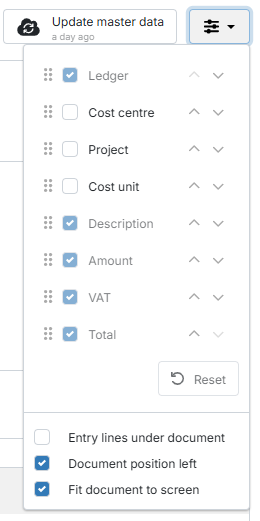
Cost centre, Project, Cost unit
Depending on your accounting package, you can turn dimensions on or off. If you don’t use a dimension, turn it off; the Description field then becomes wider.
If you use several dimensions, TriFact365 suggests placing the entry lines below the document.
Change the column order
You decide the order of the columns. You can do this in two ways:
Drag the column header to the left or right.
Open Display options and drag the column to the right place. You can also use the up and down arrows.
Change the column width
Move the mouse to the edge of the column header.
Hold down the mouse button.
Drag the edge to the left or right.
Entry lines under document
The entry lines then use the full width of the screen, with a larger Description field. You can then also adjust the height of the PDF viewer.
We recommend this option if you work with more than three dimensions.
Document position left
The document is then shown on the left of the screen instead of the right. This option is off by default.
Fit document to screen
The document is then reduced by default so that the whole page fits on your screen. You don’t have to do this yourself in the PDF viewer each time.
Related articles
Was this helpful?
Still need help? Ask the team