Creating and modifying contacts
How to create a new contact or change its details in the Check screen, and how TriFact365 recognises contacts better.
Written By Tess Hoogeboom
Last updated 6 days ago
In the Check screen, you can create a contact (supplier or customer) or change its details. TriFact365 saves the contact straight away in TriFact365 and in your accounting package.
Create a new contact
If TriFact365 cannot find the contact, the Supplier or Customer field is outlined in red.
Click the pencil icon next to the Supplier or Customer field.
Enter the details.
Click Save.

Edit a contact
Click the pencil icon next to the contact.
Add or change the details.
Click Save.
The changes are in your accounting package straight away.

Have you changed the contact in your accounting package? Then retrieve the change with Update master data. See Update master data.
Suggestion to create a new contact
Is the supplier or customer not yet known in your company? Then TriFact365 suggests creating a new contact. You see the message The contact below was not found in the company. Do you want to save it as a new contact?
TriFact365 doesn’t create the contact automatically, to prevent duplicate contacts in your accounting records. An existing contact may be listed under a slightly different name in your company. You decide whether the contact is really new.
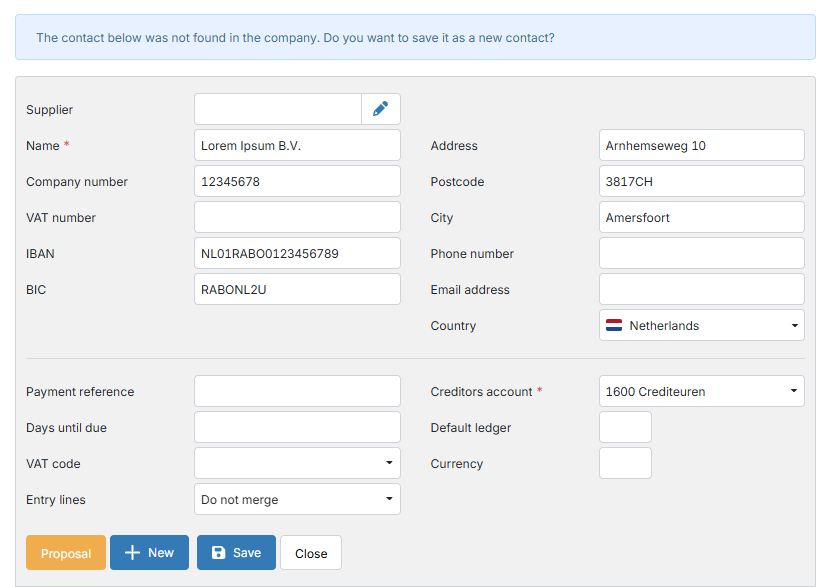
Click Save to save the contact and its master data in TriFact365 and in your accounting package.
First check that the contact really is new. Search for the name of the suggested contact in the Supplier or Customer field.
How does TriFact365 recognise a contact?
TriFact365 looks for an existing contact using these details, in this order: company number, VAT number, IBAN and address. To improve recognition:
Enter as much master data as possible for each contact, especially the company number, VAT number and IBAN.
Check regularly that the master data still matches what is on the invoices.
Avoid duplicate contacts: when TriFact365 suggests a new contact, first check whether it already exists.
Related articles
Was this helpful?
Still need help? Ask the team