Reverse-charge VAT
How to process invoices with reverse-charge VAT, and how to set this up per accounting package.
Written By Tess Hoogeboom
Last updated 11 days ago
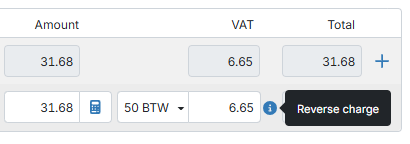
In TriFact365, you can process invoices with reverse-charge VAT. If you choose a reverse-charge VAT code in the Check screen, TriFact365 does not add the VAT amount to the total. The blue info icon shows that the VAT is reverse-charged.
Settings per accounting package
Whether you need to set anything up depends on your accounting package.
AccountView, AFAS Profit, Exact Online, iMUIS Online / King Finance, Visma eAccounting
AccountView, AFAS Profit, Exact Online, iMUIS Online / King Finance, Visma eAccounting
No settings are needed. TriFact365 sees from the VAT code whether the VAT is reverse-charged.
SnelStart
SnelStart
No settings are needed in TriFact365. Make sure SnelStart has ledger accounts with the correct function and VAT code.
King Business Software, Twinfield
King Business Software, Twinfield
In TriFact365, go to Settings (cogwheel) → Companies.
Click
•••→ Edit next to the company, or double-click the row.Go to the VAT codes tab.
Select Reverse charge for the reverse-charge VAT codes.
Click Save.
Multivers / Boekhoud Gemak
Multivers / Boekhoud Gemak
No settings are needed in TriFact365. However, choose the correct VAT scenario for the contact in the Check screen. The VAT scenario determines whether the VAT is reverse-charged.
Related articles
Was this helpful?
Still need help? Ask the team