Foreign currency
Written By Tess Hoogeboom
Last updated 4 months ago
With TriFact365, you can post invoices directly in the correct currency. The Check screen will automatically display the currency set for the selected relation.
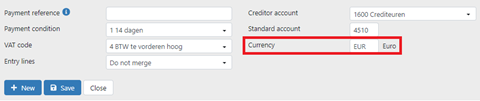
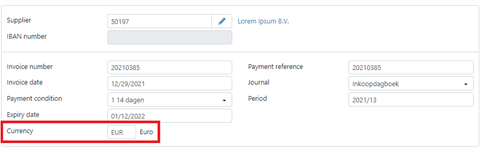
See below for the settings required for each accounting package to work with foreign currencies.
AccountView
AccountView
Make sure that the currency you want to post in, including the correct ISO currency code, has been set up in AccountView.
TriFact365 will then automatically use the currency set for the contact. You can also change this currency on the journal entry and/or in the contact details. When the entry is sent, AccountView will automatically convert it to the administration’s base currency.
AFAS
AFAS
Please note!
If you do not use currencies in AFAS, leave the Currency field in TriFact365 blank. The transaction will then be sent in euros.
AFAS Accounting System Base Currency
TriFact365 supports posting in foreign currencies for AFAS accounting systems only for AFAS environments with the Euro as the base currency.
Make sure the following settings are configured in AFAS.
Adding a currency to the AFAS accounting system
To be able to make a journal entry in a foreign currency, the currency must be added to the administration. Go in AFAS to General > Configuration > Country settings > Currency and add the required currency.Add a currency to a relation in AFAS
In addition, you should also assign and add the currency to the relation in AFAS. Go to the tab Currency Assignments of the relation in question and add the currency. You can now set it as the default currency via the General tab..Adding a currency to the general ledger in AFAS
Do not forget to assign the currency and add it to the general ledger and possibly the VAT account in AFAS. To do this, go to the General Ledger tab Currency assignments and add the currency.
TriFact365 will then automatically adopt the currency that is set for the relation. You can also change this currency on the journal entry and/or with the relation. When the journal entry is sent TriFact365 will automatically convert it to the base currency of the administration.
Exact Online
Exact Online
Make sure the following settings are configured in Exact Online.
Go to Administration > Master Data > Journals.
Select the journal to which you want to post and ensure that Variable: Currency is checked.
Variable: Exchange Rate must be unchecked. If this is checked, TriFact365 cannot create the entry and the following error message appears: Exchange Rate – Must be greater than: 0
Next, go to Financial > Analysis and Results > Currency > Exchange Rates.
Make sure the currency you want to make the journal entry in is added here.
TriFact365 will then automatically use the currency set for the relation. You can also adjust this currency on the transaction and/or in the relation details. When the transaction is sent, Exact Online will automatically convert it to the base currency of the administration.
iMUIS Online / King Finance
iMUIS Online / King Finance
No additional settings are required.
Twinfield
Twinfield
Make sure the following settings are configured in Twinfield.
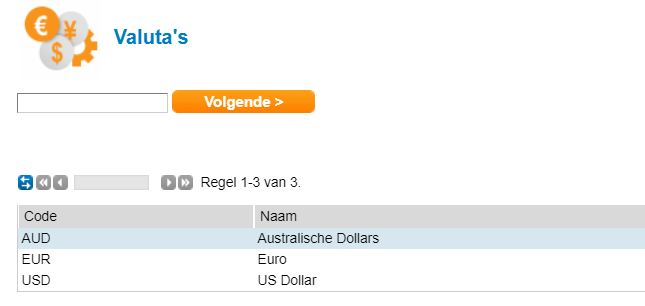
Go to Settings > Company settings > Currencies.
Ensure that the currencies have been added here with their corresponding ISO codes and exchange rates. If you do not use ISO codes, TriFact365 cannot send the transaction correctly.
TriFact365 will then automatically use the currency set for the relation. You can also adjust this currency on the transaction and/or for the contact. When the transaction is sent, Twinfield will automatically convert it to the base currency of the accounting system.
Multivers / Accounting Convenience
Multivers / Accounting Convenience
Ensure that the following settings are configured in Unit4 Multivers.
Go to Maintenance > General Data > Basic Data > Currency.
Ensure that the currency and its corresponding ISO code are defined in the table.

TriFact365 will then automatically use the currency specified for the relation. If you enter a different currency on the transaction than the one specified for the relation, it will NOT be used. In Multivers / Boekhoud Gemak, the currency specified for the contact is used.
When the entry is sent, Multivers / Boekhoud Gemak will automatically convert it to the base currency of the administration.
Visma eAccounting
Visma eAccounting
No additional settings are required for Visma eAccounting.
Was this helpful?
Still need help? Ask the team